Live Sessions
The Live Sessions can be viewed by clicking the Live Sessions tab.
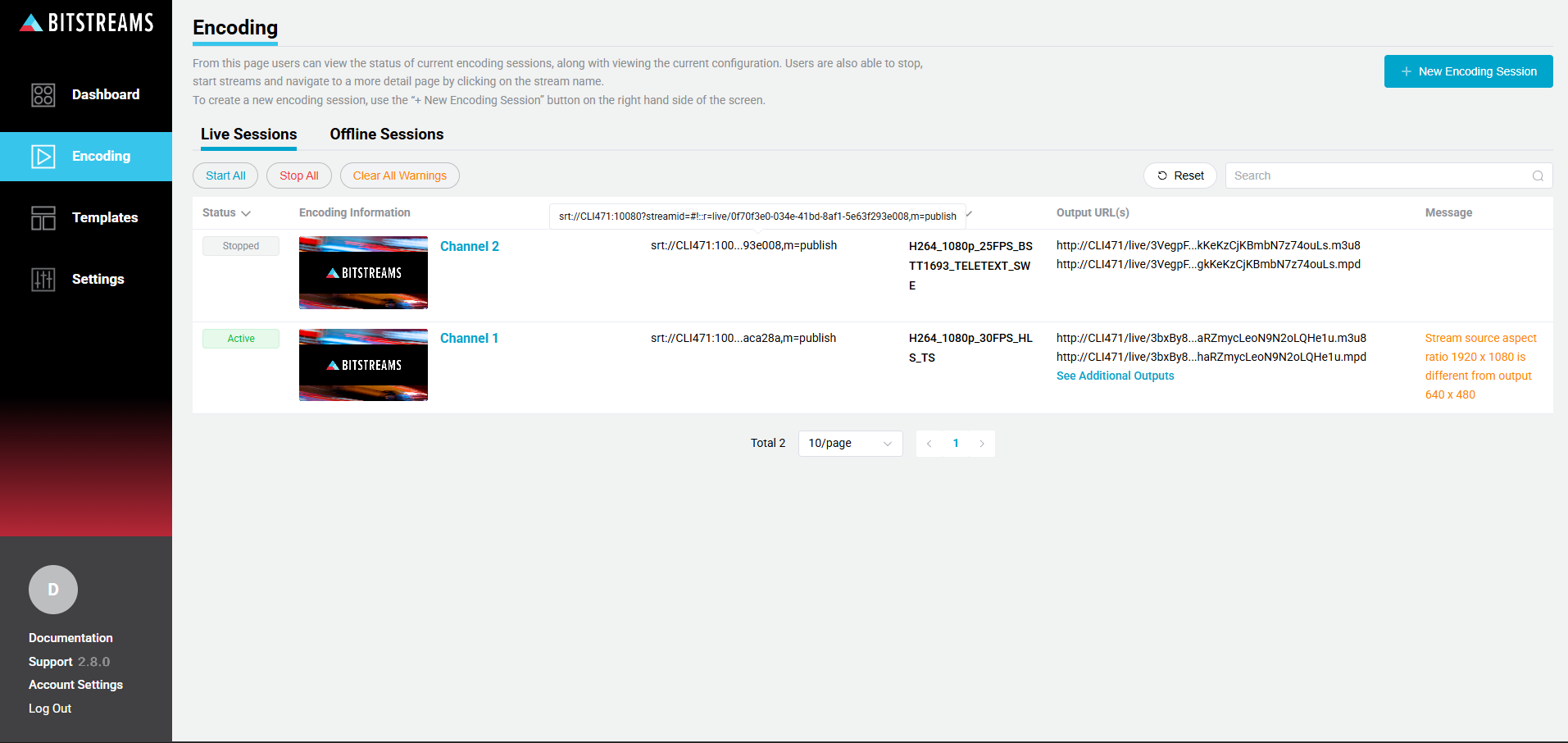
Overview
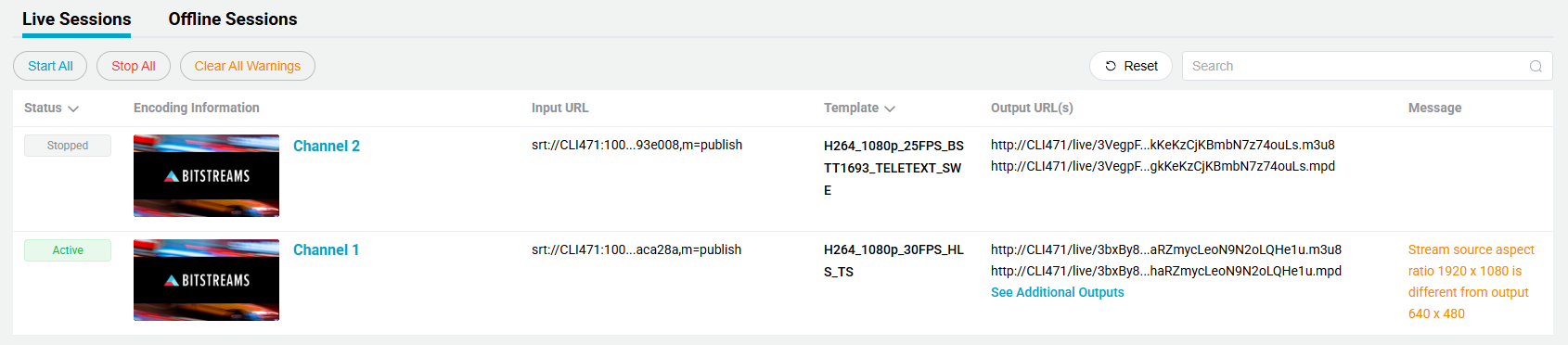
The live sessions table displays the following information. There is also the ability to search for a specific encoding session.
| Name | Description |
|---|---|
| Status | Current status of the encoding sessions |
| Encoding Information | Displays the encoding session name and descriptions, along with an cover graphic (optional) |
| Input URL | The Input URL address for the encoding session |
| Template | Template used for the first configured output. The user can click on the template name to navigate to template page for more details. |
| Output URL | The Output URL address for the first configured output. If additional outputs have been configured, the user can click See Additional Outputs to view them. |
| Message | The current error or warning message, if any. |
If the user hover's the mouse over the URL address, the full address will be displayed.
The user can also click the URL address to copy the address to the computers clipboard.
Action Icons
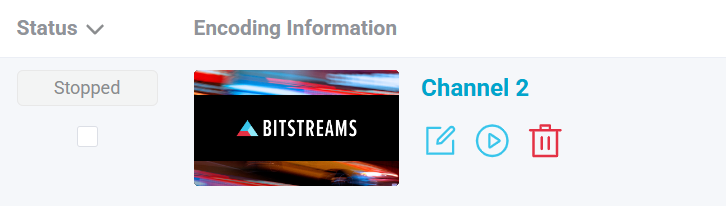
The user can use the mouse to hover over the encoding session row to display "action" icons, to start, stop and delete the encoding session.
| Name | Description |
|---|---|
 | Click to edit the encoding session, this will navigate the Encoding Details page |
 | Click the Start Icon, confirmation dialog will be displayed |
 | Click to delete the encoding session, confirmation dialog will be displayed |
 | Click to stop the encoding session, confirmation dialog will be displayed |
 | Select the encoding session to perform a bulk operation |
 | Click to failover to the alternate input path. Applies to specific inputs only. |
Selecting Sessions
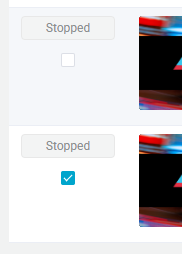
There are two options to select encoding sessions to perform bulk actions or changes.
Option 1
Select individual encoding sessions, but using the selection check box in the status column. The checkbox icon is present when the user hovers over the row with mouse or when it has been selected.
Option 2
Using the select all check box located in the title row of the table.

View Selected Sessions
When one or more encoding session has been selected and total selected sessions are displayed.

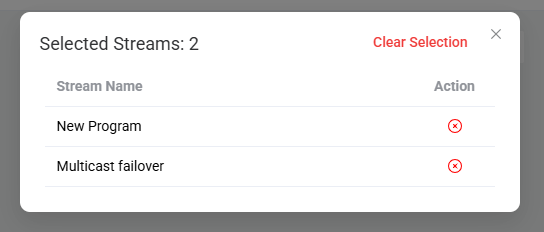
The user can view a list of all selected sessions by clicking on the selected session icon, a dialog box will display showing all the selected sessions. The user has ability to remove selected sessions or clear all the selected sessions.
Bulk Changes
Bitstreams has the ability to perform bulk changes or actions across multiple encoding sessions
Clear All Warnings

The Clear All Warnings can be used to clear all the warning appearing in the Message column. Once the Messages are cleared the cleared messages can be viewed in the Alerts section on the encoding details page.
Some warnings may appear multiple times even after they have been cleared. Recurring warnings will have to be cleared each time.
Start/Stop Multiple Sessions

The user can also select individual rows to choice which encoding sessions they want to either start or stop.
The Start can be used to start all streams that are selected an in a "Stopped" state. The Stop can be used to stop all selected streams that are NOT in a "Stopped State".
Switch to Input A/B

For inputs that support selecting to an alternate input path, using these buttons to force switching to either Path A or Path B.
Delete

Delete all encoding sessions that are in a Stopped state.