Live Sessions
The Live Sessions can be viewed by clicking the Live Sessions tab.
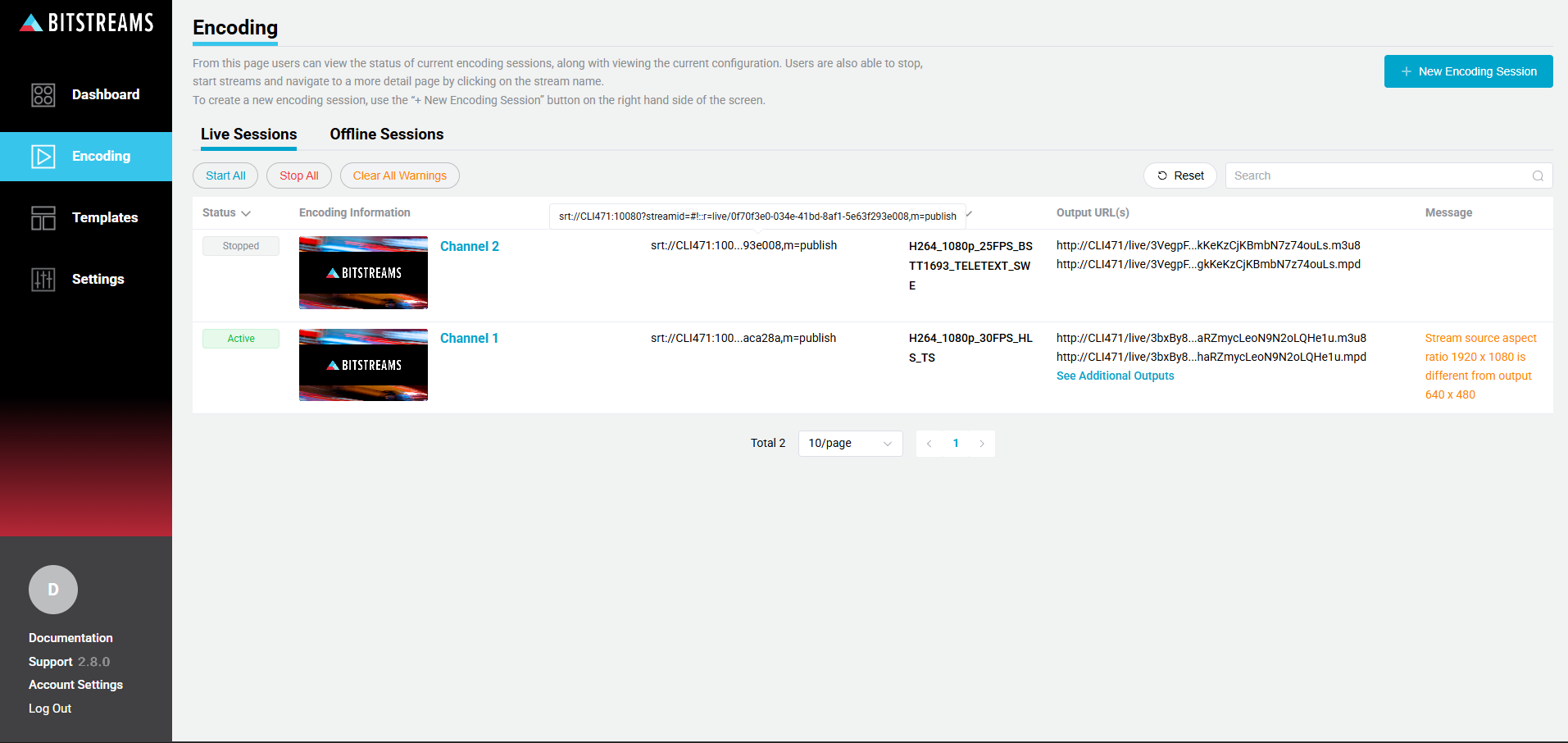
Overview
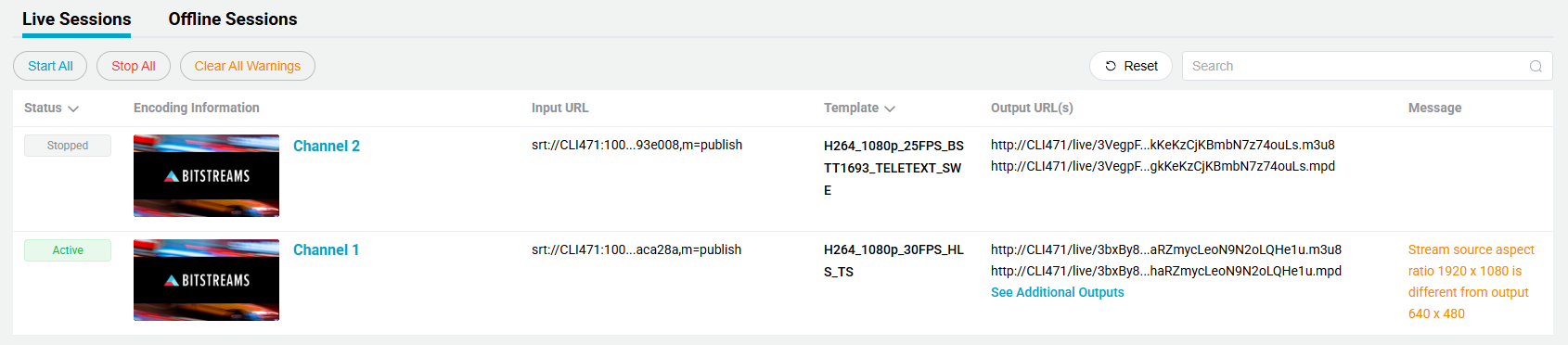
The live sessions table displays the following information. There is also the ability to search for a specific encoding session.
| Name | Description |
|---|---|
| Status | Current status of the encoding sessions |
| Encoding Information | Displays the encoding session name and descriptions, along with an cover graphic (optional) |
| Input URL | The Input URL address for the encoding session |
| Template | Template used for the first configured output. The user can click on the template name to navigate to template page for more details. |
| Output URL | The Output URL address for the first configured output. If additional outputs have been configured, the user can click See Additional Outputs to view them. |
| Message | The current error or warning message, if any. |
If the user hover's the mouse over the URL address, the full address will be displayed.
The user can also click the URL address to copy the address to the computers clipboard.
Action Icons
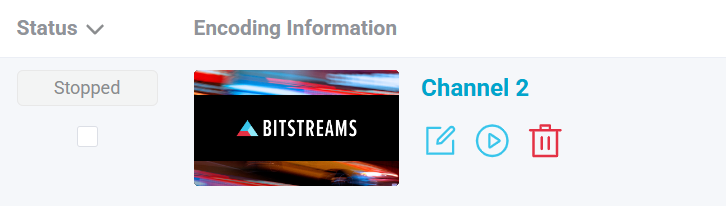
The user can use the mouse to hover over the encoding session row to display "action" icons, to start, stop and delete the encoding session.
| Name | Description |
|---|---|
 | Click to edit the encoding session, this will navigate the Encoding Details page |
 | Click the Start Icon, confirmation dialog will be displayed |
 | Click to delete the encoding session, confirmation dialog will be displayed |
 | Click to stop the encoding session, confirmation dialog will be displayed |
 | Select the encoding session to perform a bulk operation |
 | Click to failover to the alternate input path. Applies to specific inputs only. |
Selecting Sessions
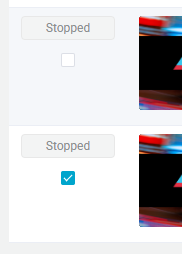
There are two options to select encoding sessions to perform bulk actions or changes.
Option 1
Select individual encoding sessions, but using the selection check box in the status column. The checkbox icon is present when the user hovers over the row with mouse or when it has been selected.
Option 2
Using the select all check box located in the title row of the table.

View Selected Sessions
When one or more encoding session has been selected and total selected sessions are displayed.

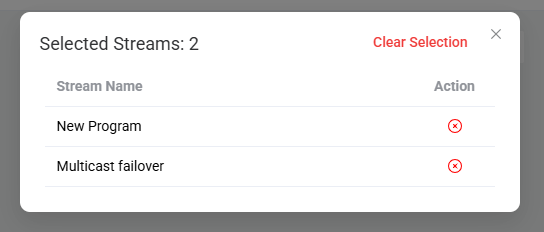
The user can view a list of all selected sessions by clicking on the selected session icon, a dialog box will display showing all the selected sessions. The user has ability to remove selected sessions or clear all the selected sessions.
Bulk Changes
Bitstreams has the ability to perform bulk changes or actions across multiple encoding sessions
Clear All Warnings

The Clear All Warnings can be used to clear all the warning appearing in the Message column. Once the Messages are cleared the cleared messages can be viewed in the Alerts section on the encoding details page.
Some warnings may appear multiple times even after they have been cleared. Recurring warnings will have to be cleared each time.
Start/Stop Multiple Sessions

The user can also select individual rows to choice which encoding sessions they want to either start or stop.
The Start can be used to start all streams that are selected an in a "Stopped" state. The Stop can be used to stop all selected streams that are NOT in a "Stopped State".
Switch to Input A/B

For inputs that support selecting to an alternate input path, using these buttons to force switching to either Path A or Path B.
Delete

Delete all encoding sessions that are in a Stopped state.
CSV Import / Export
Bitstreams has the ability to bulk-create live encoding sessions by importing a CSV file, as well as export existing sessions to CSV. This can be used to manage many sessions at once without configuring each one individually in the GUI.
Export

The Export All CSV can be used to download all live encoding sessions as a CSV file. When sessions have been selected, the button changes to Export Selected CSV and only the selected sessions are exported.
The exported file starts with a header row, then a release info row, then one row per session. The first column is comment and is empty for normal data rows. Sessions that cannot be re-imported as-is are still exported, but the comment column is populated with Comment - <reason> so the row is skipped on re-import. This applies when:
- the session has more than one region
- the session has more than one playback (output)
- the session has no playbacks
- the input or output type is not supported by CSV (see lists below)
- the session has stream remap enabled
To see how a setting maps to a CSV column, configure a single encoding session in the GUI and export it. The exported file shows which columns are populated for that input/output combination and how their values are formatted.
Import
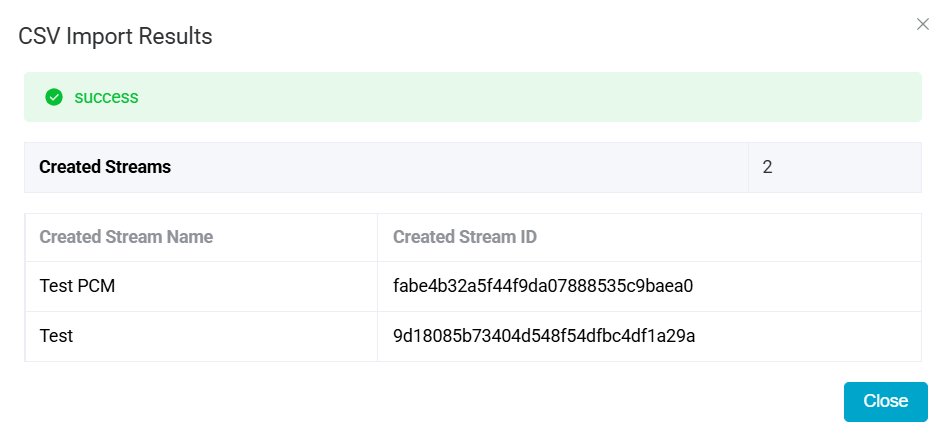
The Import CSV can be used to bulk-create live encoding sessions from a CSV file. The user uploads a CSV file containing one row per session to be created. The header row is validated against the required headers below. Matching is case-insensitive and whitespace is trimmed. Each non-comment, non-blank row is then validated, and if every row is valid all sessions are created. The CSV Import Results dialog lists each created session by name and stream ID.
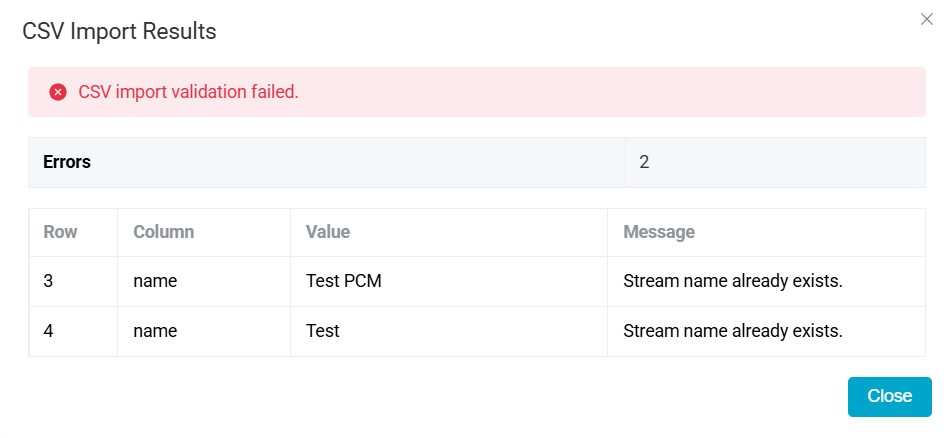
Import is create-only and all-or-nothing. If any row fails validation, the entire job is rejected and no sessions are created. The CSV Import Results dialog returns a per-row error report identifying the failing row, column, value, and message so the CSV can be corrected and re-uploaded.
To make bulk adjustments to existing sessions, Export All CSV, edit the rows in the CSV file, bulk delete the original sessions, and then import the edited CSV. Imports only create new sessions, so the originals must be removed first.
Required Headers
| Header | Description |
|---|---|
name | Session name. Not case sensitive, no duplicates. |
input_type | One of the supported input types listed below. |
output_type | One of the supported output types listed below. |
output_name | Playback / output name. |
template_name | Template name. Not case sensitive, no duplicates. |
Optional Headers
| Header | Applies To | Description | Example |
|---|---|---|---|
description | any | Optional session description. | Channel 5 HD |
input_urls-a | user-defined inputs | Primary input URL. | udp://239.1.0.134:5000 |
input_urls-b | multicast_pull only | Failover URL. Presence enables failover mode. | udp://239.1.0.134:5001 |
input_settings-failover_recovery_interval_seconds | multicast_pull failover | Selects the recovery mode. Set to -1 to Remain on Input B (do not switch back). Set to a value >= 120 to enable Recovery attempts to Input A, where the value is the interval in seconds between attempts. | 120 |
input_settings-failover_error_threshold_percent | multicast_pull failover | Float between 0.01 and 100.0. | 3.0 |
input_settings-custom_stream_key | srt_push, rtmp_push | Custom stream key. | myStreamKey |
input_settings-srt_passphrase | srt_push with encryption | SRT passphrase. | |
input_settings-enable_hls_scte35_passthrough | hls_pull | TRUE to enable. | TRUE |
input_settings-enable_slates | any | TRUE to enable slates. | TRUE |
input_settings-enable_srt_encryption | srt_push | TRUE to enable encryption. | TRUE |
output_settings-enable_hls | http output | TRUE to enable HLS. | TRUE |
output_settings-enable_dash | http output | TRUE to enable DASH. | TRUE |
output_settings-service_provider | multicast, srt_push | Service provider name. | NETINT |
output_settings-program_number | multicast, srt_push | Presence implies MPEG-TS enabled. | 259 |
output_settings-format | file output | mkv or mp4. | mkv |
output_settings-max_file_duration_seconds | file output | Multiple of 300 between 300 and 43200. | 300 |
output_urls | non-HTTP outputs | One URL per template output resolution, separated by whitespace. For file output, the file path. For cmaf_push, one base URL. | udp://239.1.10.134:5001 udp://239.1.20.134:5001 |
Supported Input Types
multicast_pull, hls_pull, dash_pull, rtsp_pull, srt_pull, rtp_pull, srt_push, rtmp_push.
capture_card and rtmp_pull inputs are not supported by CSV.
Supported Output Types
http, srt_push, rtmp_push, multicast, cmaf_push, file.
mediapackagev2, whip, and capture_card outputs are not supported by CSV.
Limitations
- Single region per session. Multi-region sessions cannot be imported, and are exported as comment rows.
- Single playback per session. Sessions with multiple playbacks are exported as comment rows.
- Stream remap is not supported. Sessions with remap enabled are exported as comment rows.
- Boolean values must be
TRUEorFALSE(case-insensitive).