Edit Template
There are two ways to edit an existing template which allows the user to modify the template's settings. This includes adjusting video resolutions, bitrate, audio settings, and other streaming or encoding parameters. Use this feature to update the template according to new requirements or to optimize existing configurations for better performance.
After the template has been edited, the user will need to manually restart all the encoding sessions that are currently using the template.
After the template has been modified, ensure to click Save button located in the top right hand corner of the screen. Alternatively the user can cancel the changes by clicking the Cancel button.
Edit Mode
Option 1
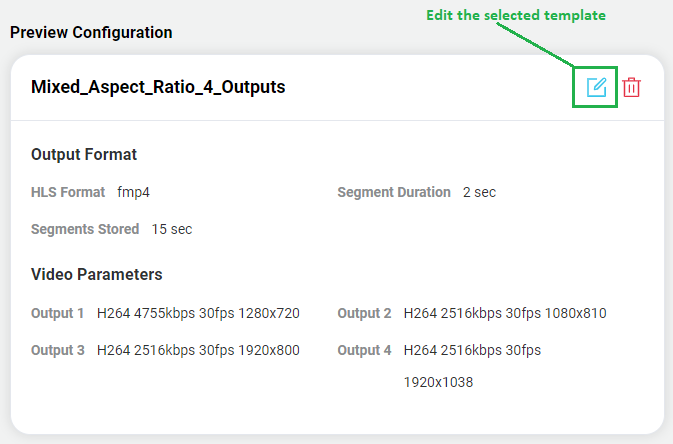
The first option is to select the row of the desired template and then click the edit icon within the preview configuration window.
Option 2
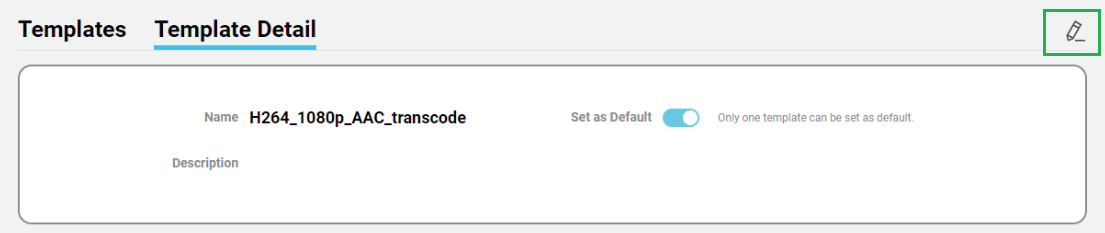
The second option is to select the template name to navigate to the template full preview mode, then click on the Pencil Icon located in the top left hand corner.
Parameters
When in edit mode there are two sections.
Template Details
This section allows the user to provide:
- Name (required)
- Description (optional).
- Set as Default.
warning
Only one template can be set as the default. This option allows for this template to be the first one listed on any setting that allows the selection of a template.
Template Encoding Details
This second section allows for the configuration of various settings:
Video Parameters

| Parameter | Required | Value range | Description |
|---|---|---|---|
| Codec | Yes | - H264 - H265 - AV1 - RAW(SDI) | Video encoding format |
| Bitrate | Yes | 100-100000 | Video bit rate in kbps |
| Frame Rate | Yes | 1-120 | Frame rate used for the output video, see warning message below |
| Resolution | Yes | Various | Select the desired Output Resolution |
| SDI Format | Yes | Various | When the codec is RAW (SDI) provide a list of supported output formats. This selection will also automatically configure the bitrate, framerate and resolution. This codec can not be combined with other codecs. |
Currently Bitstreams does not increase the framerate. The output framerate will be the lower of either the input framerate or the configured framerate in the template. This will be addressed in a later release, ensure that the desired fps has ben configured in the template.
For example:
- If the input framerate is 30 fps and the template is configured for 60 fps, then the output framerate will be 30 fps.
- If the input framerate is 60 fps and the template is configured for 30 fps, then the output framerate will be 30 fps.
Add Custom Value
If the desired frame rate and/or resolution are not present in the drop down list, then the user open the dropdown and then click Add a Custom Value, to enter in a new value and click Confirm. Hover the mouse over the desired field to reveal the possible options.
Add Additional Resolutions
At the bottom of the table, click the + Add Output to add an additional output.
The outputs are automatically sorted based on resolution (highest to lowest), then bitrate (highest to lowest), then framerate (highest to lowest) when the encoding session has been started.
Delete a Resolution
Use the Trash Can icon at the end of the row of the desired resolution that needs to be removed.
Audio Parameters

If the template does not contain any audio tracks, then all audio tracks will be passed through.
Add Additional Audio
At the bottom of the table, click the + Add Output to add an additional output.
| Parameter | Required | Value range | Description |
|---|---|---|---|
| Input Index | Yes | Audio stream selection index | Selects the audio stream to use |
| Language | Yes | ISO 639-2B Language code or "copy" | Sets the language code for the audio output |
| Default Language | Yes | ISO 639-2B Language code or "copy" | Sets the default language code for the audio output |
| Codec | Yes | AAC, AC3, Copy | Audio encoding format. If this parameter is configured for copy, the audio will be configured for passthrough |
| Profile | Yes | AAC-LC, AAC-HE, AAC-HEv2 | AAC-LC - Low-Complexity AAC-HE - High-Efficiency AAC-HEv2 - High-Efficiency v2 |
| Channel | Yes | 0-8 | Number of audio channels per audio stream. 0 - Use source stream settings 1-8 - number of audio channels to use up till the supported max of 8 channels |
| Bitrate | Yes | 20-640 | Audio bit rate in kbps |
| Sample Rate | Yes | 96k, 88.2k, 64k, 48k, 44.1k, 32k, 24k, 22.05k, 16k, 12k, 11.025k, 8k, 7.35k | Target audio sampling rate |
Only the specified Audio tracks, based on the input index will be used, all other audio tracks will be ignored.
When the output is multicast/UDP, then each output resolution will include the configured audio tracks, plus any DVB Subtitles and/or Teletext PIDs.
Delete an Audio
Use the Trash Can icon at the end of the row of the desired audio that needs to be removed.
Subtitles Parameters
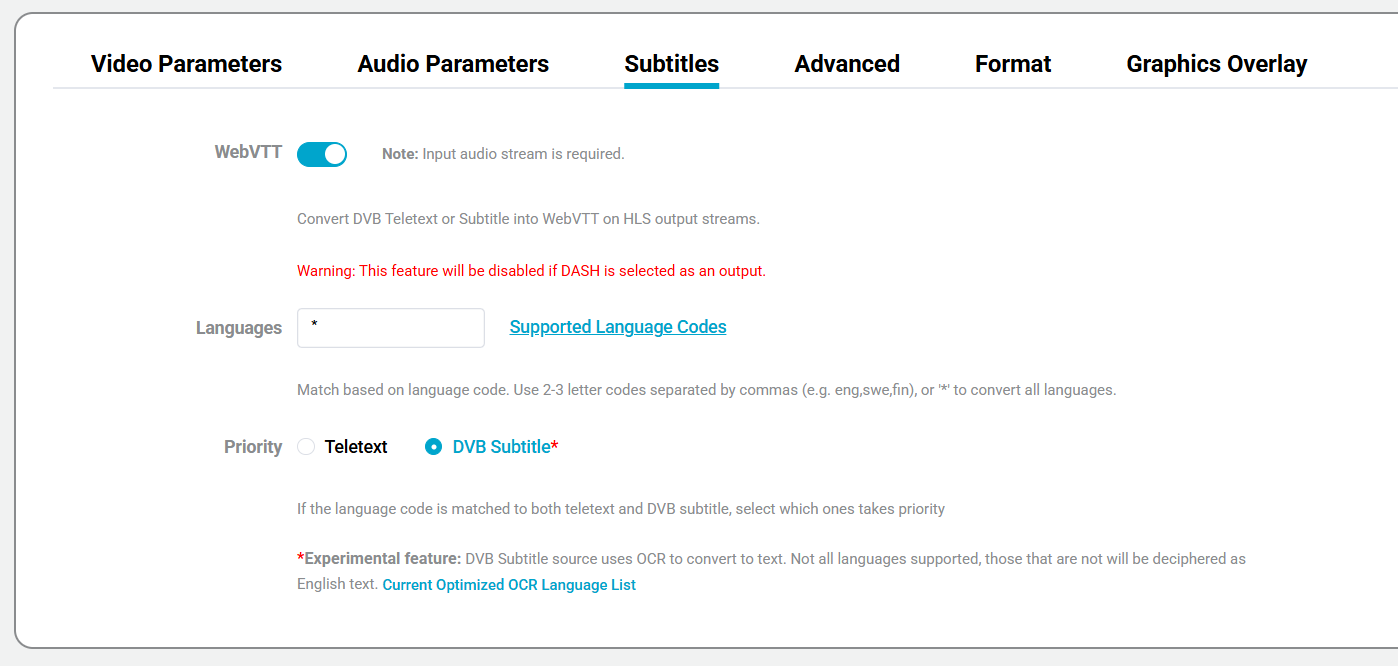
When the output is configured for HLS and the input has a teletext or DVB subtitle stream, Bitstreams can convert subtitles to WebVTT.
The user can enter a single language descriptor or a list separated by commas. If an * is used then all subtitle languages will be converted to WebVTT.
When a language code is matched to both teletext and DVB subtitle formats, users can select which format takes priority using the Priority setting.
- At least one audio stream needs to be present for this feature to work.
- WebVTT output will be disabled if DASH is selected as an output.
- DVB Subtitle conversion is experimental and uses OCR to convert to text. Not all languages are supported - unsupported languages will be decoded as English text.
Advance Parameters
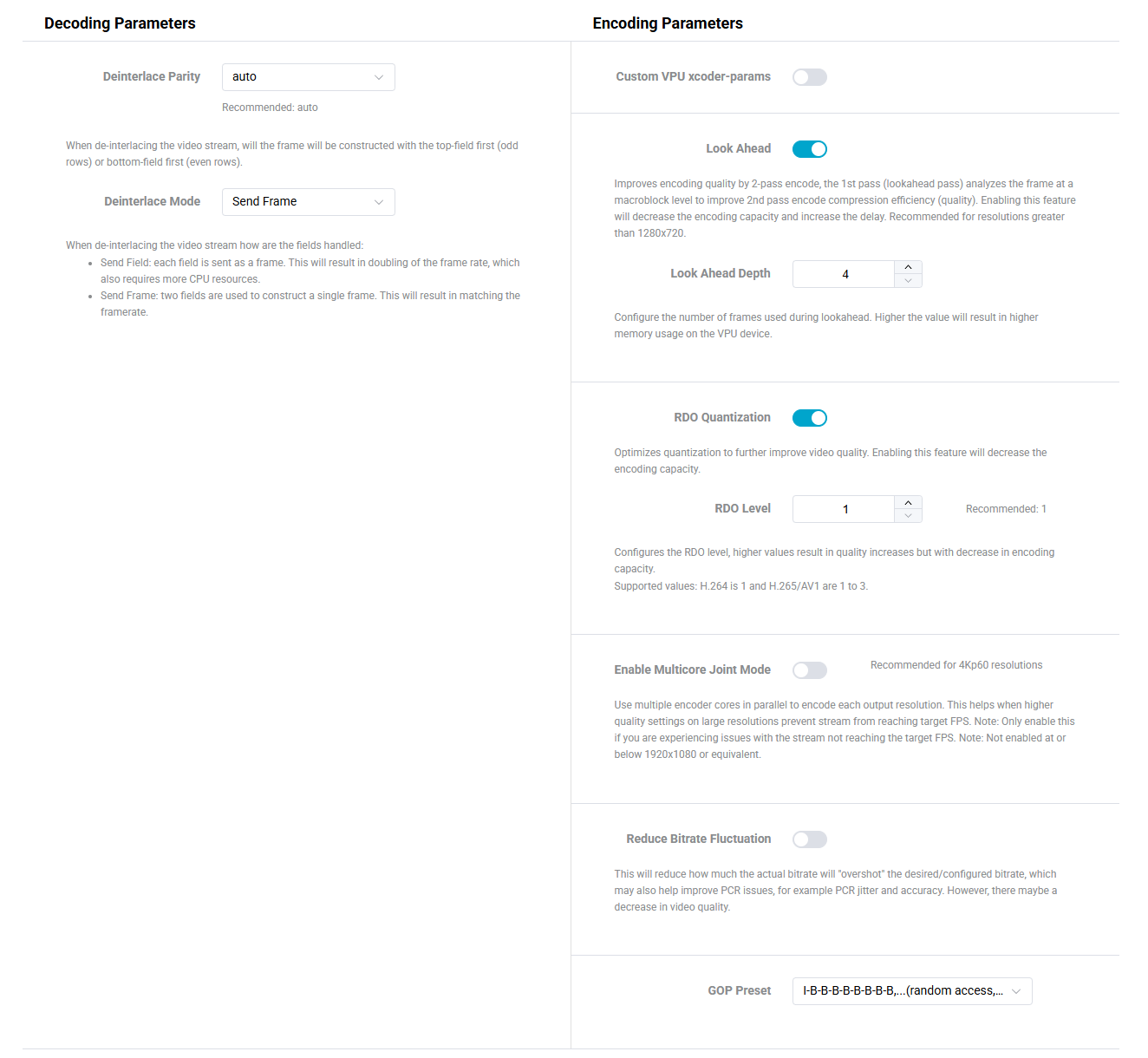
The advance parameters are divided into two sections:
- Decoding Parameters
- Encoding Parameters
Decoding Parameters
The decoding parameters are to configure how the Host CPU will hand de-interlacing of the input streams.
| Parameter | Required | Value range | Description |
|---|---|---|---|
| Deinterlace Parity | yes | auto, tff, bff | When de-interlacing the video stream, will the frame be reconstructed using the top-field first (odd rows) or bottom-field first (even rows). |
| Deinterlace Mode | yes | Send Frame, Send Field | When de-interlacing the video stream how are the fields handled: Send Field: each field is sent as a frame. This will result in doubling of the frame rate, which also requires more CPU resources. Send Frame: two fields are used to construct a single frame. This will result in matching the framerate. |
Encoding Parameters
| Parameter | Required | Value range | Description |
|---|---|---|---|
| Custom VPU xcoder-params | no | various | Provide custom xcoder params for encoding. |
| Look Ahead | Yes | On/Off | Look ahead encoding optimizes video compression by analyzing future frames before encoding the current frame. |
| Look Ahead Depth | Yes | 4-40 | Specifies the number of future frames to analyze. |
| RDO Quantization | No | On/Off | Enables or disables Rate-Distortion Optimization Quantization for better video quality at the cost of decreased capacity. |
| RDO Level | No | 1, 2, 3 | Specifies the Rate-Distortion Optimization level for H.265 and AV1 encoding. Higher levels provide better quality at the cost of decreased capacity. |
| Multicore Joint Mode | No | On/Off | Use multiple encoder cores in parallel to encode each output resolution. This helps when higher quality settings on large resolutions prevent stream from reaching target FPS. Note: Only enable this if you are experiencing issues with the stream not reaching the target FPS. Note: Not enabled at or below 1920x1080 or equivalent. |
| Reduce Bitrate Fluctuation | No | On/Off | Reduces how much the actual bitrate will "overshoot" the desired/configured bitrate, which may help improve PCR issues (e.g., PCR jitter and accuracy). May result in decreased video quality. Available only when Custom VPU xcoder-params are disabled. Commonly used with null stuffing for multicast outputs. |
| GOP Preset | No | various | Configures the GOP Structure based on the codec, Lookahead and RDO. |
Requires knowledge of the Quadra Encoding parameters.
NOTE: incorrect parameters and values may result in the encoding session to fail without any error message. Use with caution.
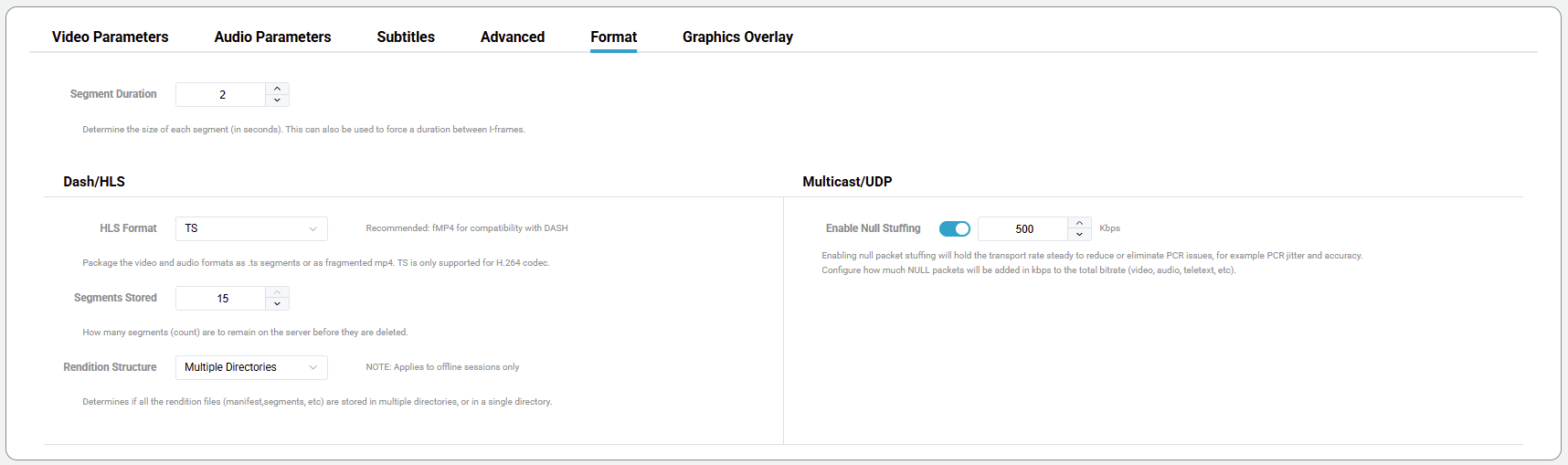
Format Parameters
| Parameter | Required | Value range | Description |
|---|---|---|---|
| Segment Duration | yes | 2-20 | Determine the size of each segment (in seconds). This can also be used to force a duration between I-frames. |
| HLS Format | yes | TS, fMP4 | Package the video and audio formats as .ts segments or as fragmented mp4. TS is only supported for H.264 codec. |
| Segments Stored | yes | 2-15 | How many segments (count) are to remain on the server before they are deleted. |
| Rendition Structure | no | Single Multiple | Determines if all the rendition files (manifest,segments, etc) are stored in multiple directories, or in a single directory. NOTE: Applies to offline sessions only |
| Enable Null Stuffing | no | On/Off, 0-5000 Kbps | Enabling null packet stuffing will hold the transport rate steady to reduce or eliminate PCR issues, for example PCR jitter and accuracy. Configure how much NULL packets will be added in kbps to the total bitrate (video, audio, teletext, etc.). Only available for multicast/UDP outputs. |
Graphics Overlay
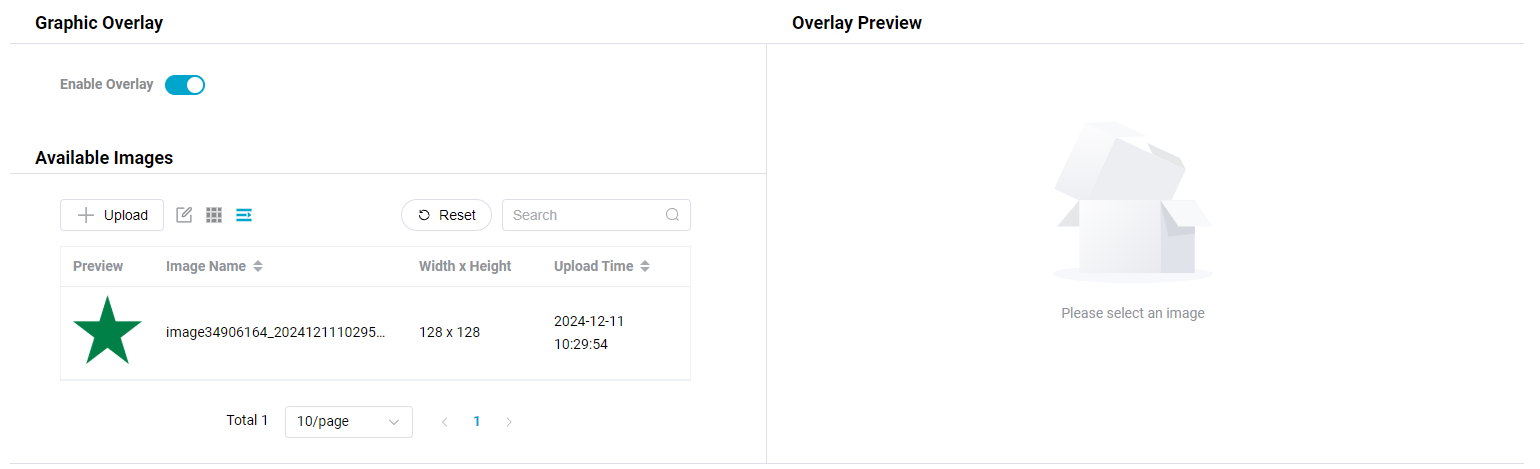
This feature, when enabled, allows for an image to be overlaid onto the video stream.
Available Images
Displays a preview of all the images that have been uploaded to the server. The User can selected the desired image by clicking on the image. The user can also use the search field to easily find the desired image.
| Parameter | Required | Description |
|---|---|---|
| Upload | No | Button to upload new images to the system. Supports jpg/jpeg/png/bmp files with a size less than 2MB. Max resolution is 480px, min is 32px. |
| Image | No | Specifies the image to use as an overlay, by selecting from previously uploaded images. |
 | - | Allows the ability to delete an image, by clicking on the trash can (table view) or the red "x" on the image (thumbnail view) |
 | - | View all the available images as a thumbnail |
 | - | View all the available images as a table, includes the filename, upload time and resolution. |
Overlay Preview
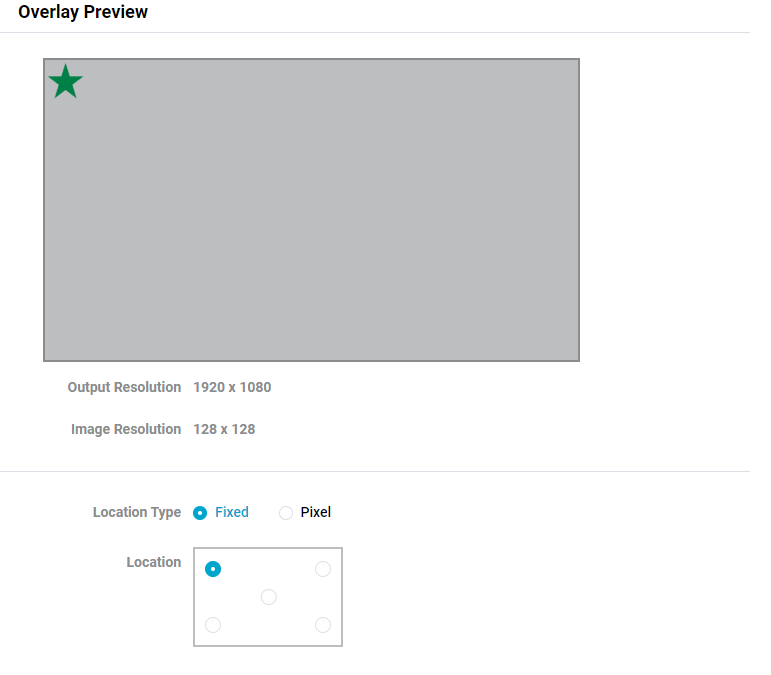
Displays a preview of where the overlay image will be located, based on the highest resolution in the template. Only displayed after an image has been selected.
When the overlay position is adjusted the preview will be updated to reflect the location.
| Parameter | Required | Value range | Description |
|---|---|---|---|
| Output Resolution | - | - | Highest available resolution in the template |
| Image Resolution | - | - | Resolution of the selected image |
| Location Type | Yes | Fixed | Fixed, Pixel |
| Location | Yes | - | Fixed - specify location in one of the 4 corners or the center Pixel - use x and y offsets to specify the image location |
Horizontal (X) and vertical (Y) offsets for the logo position from the top left of the video.