Servers
Each Bitstreams Instance that is connected to the manager, must have one of following releases installed. They should be upgraded before upgrading or installing the Bitstreams Manager: 3.1.0, 3.0.1, 3.0.0
The Servers page lists all the connected and pending Bitstreams instances for the Manager

| Name | Details |
|---|---|
| Status | Displays if the Bitstreams instances is connected, disconnected or pending enrollment |
| Server | The name of the Bitstreams instance |
| Location | The location where the the Bitstreams instance is located within the Manager |
| Version | The Version installed on the Bitstreams instance |
| Enrollment Expires | When the enrollment will expire. The Manager will automatically renew the enrollment. |
| Message | Sever level messages, for example license has expired, upgrade is required. |
| Actions | Force the enrollment renewal or remove the Bitstreams from the manager |
Enrollment
The enrollment is a semi automatic process that has a manual fall back option if the semi automatic process fails.
- Both the Manager and Bitstreams are using either http or https. When using different protocols the authentication may fail
- The browser being used is able to access the UI of both the Manager and Bitstreams
-
Ensure the Bitstreams Manager and the Bitstreams instance both have the same authentication code.
-
From the left hand menu click the Servers menu

-
On the left hand side of the page, click "+ New Server"

-
Provide the required details.
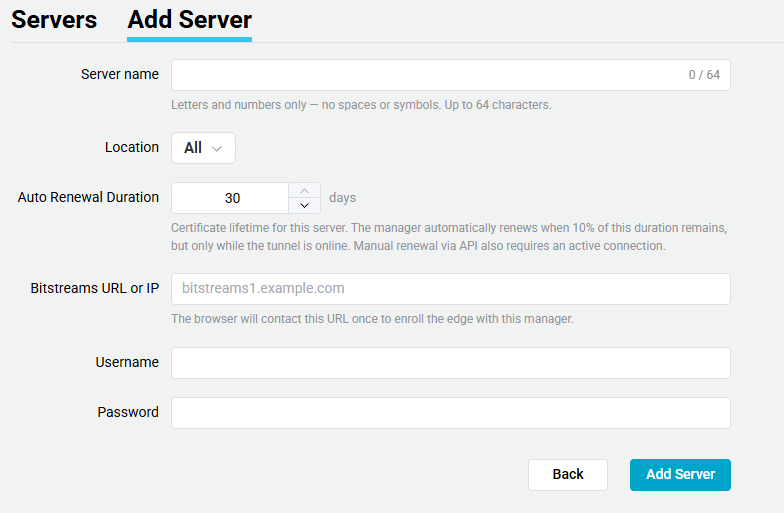
Name Details Server Name Provide a name for the server that will be used by the manager Location Select the Location where the server be assigned Auto Renewal Duration Select the duration of the renewal.
The Manager will auto renew if there is an active connection.Bitstreams URL or IP The URL or IP address of the Bitstreams server Username The username for the Bitstreams instance Password The password for the Bitstreams instance -
Click Add Server
-
The Enrollment process will be started, once completed the page will redirect back to the Servers page with the new instance being available.

Manual Enrollment
If the semi-automatic enrollment fails, then the user will have to manually add the new server. The enrollment details are provided automatically.
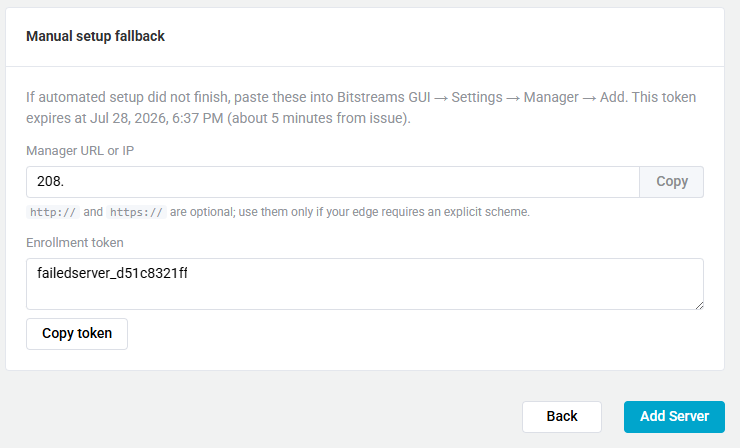
The provide token has a limited lifespan, if not used within the time window a new one needs to be generated.
-
Manaully Log into the Bitstreams instance
-
Click on Settings the click on the Manager tab
-
Click on "+ Add Manager"
-
Provide the required information and click "Submit"
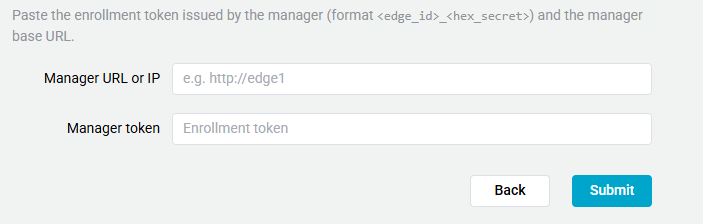
Name Details Manager IP or URL The URL or IP address of the manager Manager Token The token provided by the manager during the failed enrollment