Region of Interest (ROI)
ROI is a feature of the encoder that permits the quality of some regions to be improved at the expense of other regions. This is achieved by specifying an ROI map containing the QP (0-51) for each 16x16 pixel block for H.264, and 32x32 pixel block for H.265, or 64x64 pixel block of AV1.
A higher QP means lower quality, a lower QP means higher quality. If rate control is disabled, the QPs are used directly for encoding, if rate control is enabled, the encoder scales the QPs as necessary to meet the bitrate target. When ROI is enabled, the ROI map can be updated, enabled, or disabled on a frame by frame basis.
As of version FFmpeg 4.2.1, FFmpeg supports an API for ROI that permits a number of rectangular ROI regions to be defined along with a QP Offset in the range of -1 to +1. The FFmpeg QP Offset corresponds to a QP Offset of -25 to +25 on the encoder. As of version FFmpeg 4.3.1, FFmpeg supports an ROI filter (addroi) that permits a number of ROI regions to be specified on the command line. Unfortunately, this filter is fairly limited since it does not permit the ROI regions to be updated on a frame by frame basis. For more detail see the Region of Interest application note.
The FFmpeg Region Of Interest (ROI) filter inferences from input frames using the in-built AI module in Quadra. It identifies the bounding coordinates of chosen objects and classes within images, and then wraps the coordinates into ROI side data.
The filter loads a YOLOv4 object detection model into the user specified AI module. This model will then be unfolded and initialized in memory. The input and output dimensions are also defined.
YOLOv4 models require a tensor with shape 416x416 and pixel format BGRPlanar as the input. This means that the filter needs to scale the input images and perform the format conversion.
The filter supports both hardware frames and software frames.
Software Frame
For software frames, only YUV420P is supported as the input. The SWS library in FFmpeg is used to perform software scale. FFmpeg doesn’t support BGRPlanar, and so the filter first scales the input image to a 416x416 RGB24 AVFrame, it then rearranges the frame to a compact RGRPlanar tensor, and then transfers the tensor down to the AI module to perform the inference.
Hardware Frame
For hardware frames, because Quadra 2D supports BGRPlanar output in the format conversion, the filter passes hardware frames directly to the 2D engine to perform scaling. The scaled image is stored in another hardware frame. Once scaling completes, it passes the scaled hardware frame over to the AI module for inference.
Before inference begins, an output buffer is preset in the model. When the inference is complete the output tensor will be saved in the output buffer. The filter then fetches the output tensor from firmware. It executes post processing on the output tensor to compute the object boxes and class labels inside the images. If there are any objects detected, their bounding boxes are converted to four coordinates relative to the upper left zero point of the images. Each objects’ coordinates will be put into the ROI side data including a preset QP offset. All ROI side data within an image is appended to, then passed down to the encoder along with the actual images themselves.
Parameters
The table below defines the parameters supported by the ni_roi filter.
| Parameter | Values | Description |
|---|---|---|
| nb | String Default: NULL | Specify the full filename and path of the AI modules network binary. Without this required field, this filter won’t work. |
| qpoffset | [-1.0, 1.0] Default: 0.0 | Specify the ROI QP offset so that the encoder can set the specific QP in these regions based on the QP offset. ROI side data structure is defined in FFmpeg/ libavutil/frame.h, named struct AVRegionOfInterest. |
| devid | [-1, 2147483647] Default: 0 | Specify the Device ID of the Quadra device to use. A value of -1 will collocate the instance on the same device as the input YUV hardware frame. If there are not enough resources, or if the device ID is not specified then the resource monitor will decide where to place the instance. |
| obj_thresh | [0,1.0] Default: 0.25 | Specify the YOLOv4 post processing object threshold. Each region has a score. When the score reaches the obj_thresh, it will be specified as an object. The higher the threshold, the harder it is to be defined as an object. |
| nms_thresh | [0,1.0] Default: 0.45 | Specify the YOLOv4 post processing NMS IOU threshold. The goal is to select the bounding boxes with the highest detection probability and eliminate all the bounding boxes whose intersection Over Union value is higher than a given IOU threshold. |
Examples
The command line below shows an example using the ROI filter during transcoding with hardware frame mode.
ffmpeg -y -vsync 0 -init_hw_device ni=foo:0 -dec 0 -c:v h264_ni_quadra_dec -xcoder-params ‘out=hw’ -i cr7_1920x1080.h264 -filter_hw_device foo -vf ‘ni_roi=nb=./network_binary_yolov4_head.nb:qpoffset=-0.6’ -enc 0 -c:v h264_ni_quadra_enc -xcoder-params ‘roiEnable=1:RcEnable=1:bitrate=500000’ -an cr7_1080p_roi_b500000.h264
The following command line shows a software frame mode example.
ffmpeg -y -vsync 0 -dec 0 -c:v h264_ni_quadra_dec -i cr7_1920x1080.h264 -vf ‘ni_roi =nb=./network_binary_yolov4_head.nb:qpoffset=-0.6’ -enc 0 -c:v h264_ni_quadra_enc -xcoder-params ‘roiEnable=1:RcEnable=1:bitrate=500000’ -an cr7_1080p_roi_b500000.h264
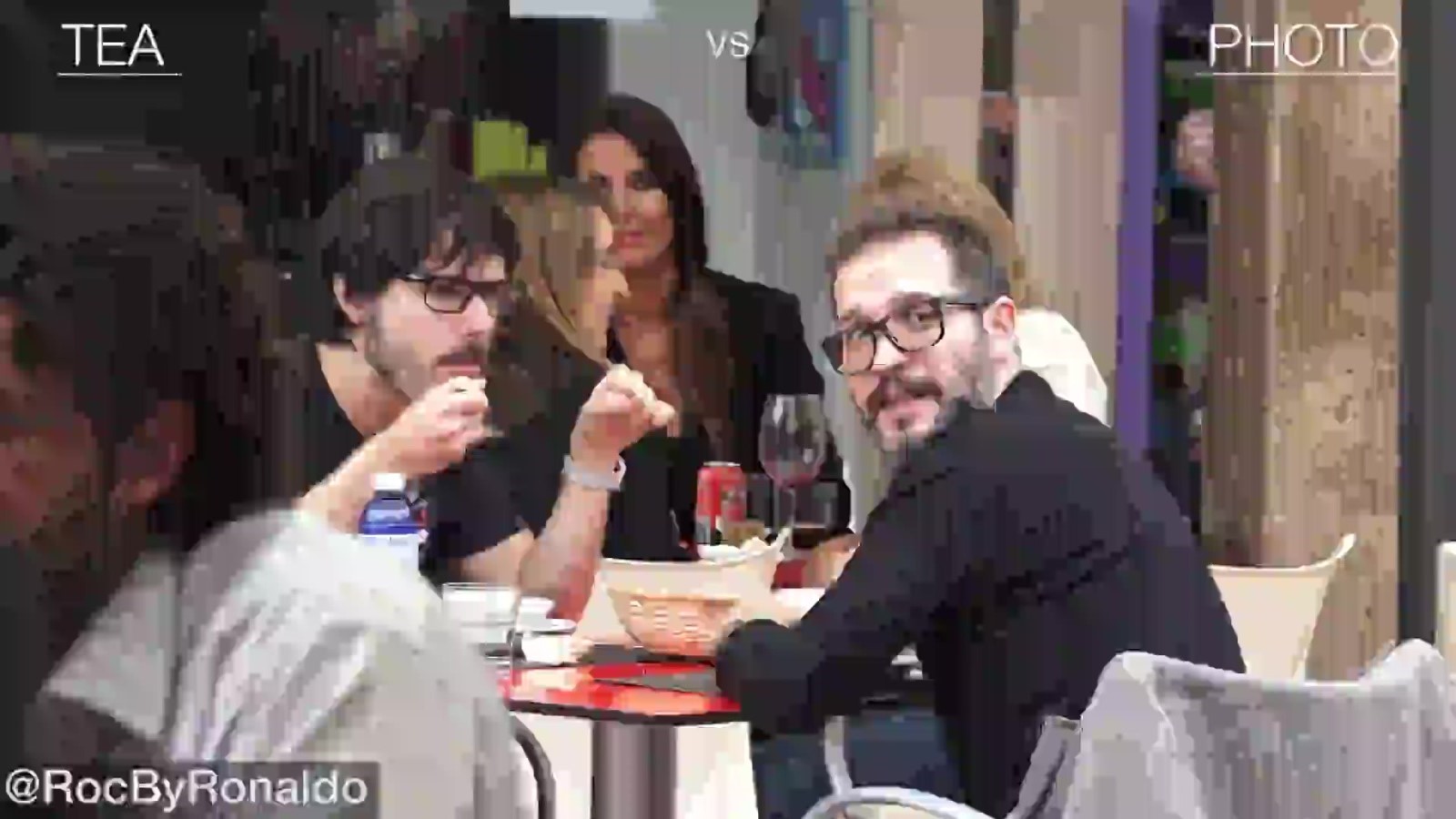
The following comparison illustrates the improvements when using an ROI filter. The top picture is without an ROI filter, and the bottom picture is with an ROI filter with a bitrate of 500kbp.
The human faces in picture have a mosaic effect just like the other regions in the screenshot
The image below, with an ROI, has no mosaic effect on the faces

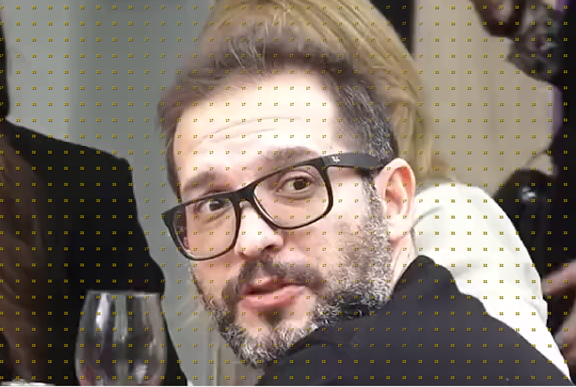
This image is zoomed in from a screenshot with ROI to show the QP of the human face and areas surrounding it.
The qpoffset is set as -0.6, which means the QP of the ROI has an offset value of -15 from its preset QP.
The non-human face MBs have a QP value of 32, while the human face MBs have a QP value of 17.