Pull Stream Output (Multicast)
This page assumes that you have already selected and configured the pull streaming input section.
Configure a Multicast Output
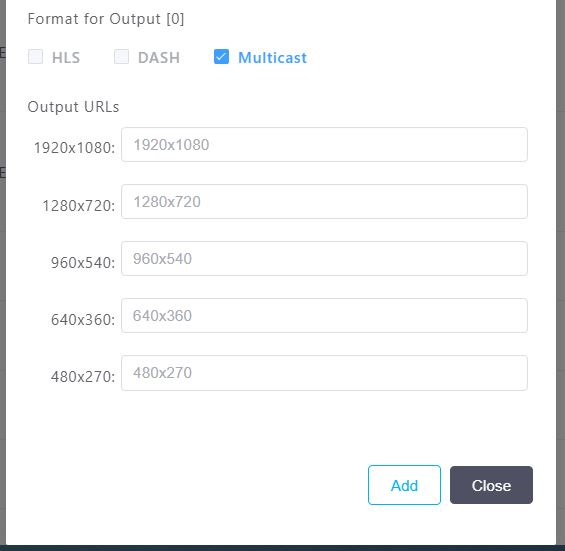
- Select the "Multicast" checkbox for this example in the Format for Output section.
- The Output URLs will be shown after selecting the checkboxes, these are based on the selected transcoding template.
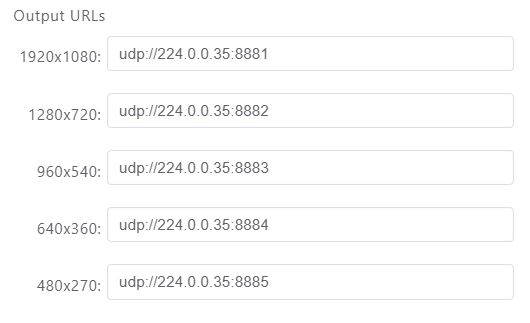
- There is a text entry box next to each output resolution, add an output URL for each resolution, an example is shown below:
When streaming content over a network using UDP, it's often necessary to control the network interface used for sending the stream. Bitstreams provides a feature that allows specifying the local address of the network interface for UDP multicast streaming using the localaddr option.
udp://[multicast_address]:[port]?localaddr=[local_IP_address]
Parameter Details
[multicast_address]: The IP address of the multicast group.[port]: The port number for the multicast stream.[local_IP_address]: The IP address of the local network interface that should be used for the outgoing stream.
When to Use the localaddr Option
The localaddr option is particularly useful in the following scenarios:
-
Multiple Network Interfaces: When the streaming server is equipped with multiple network interfaces, specifying the
localaddrensures that the multicast stream is sent through the correct interface. This is crucial in complex network setups where different interfaces are connected to different segments of a network or have different roles. -
Network Traffic Control: In environments where it's important to control the flow of network traffic precisely, using
localaddrcan help manage bandwidth and ensure that multicast traffic does not interfere with other network activities. -
Specific Routing Requirements: In some cases, multicast streams need to be routed through specific network paths. By binding the stream to a particular interface, you can influence the routing behavior, assuming the network is configured accordingly.
- Press the Add button on the bottom right to finish the pull stream setup.
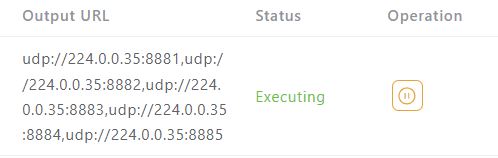
The pull stream should now be executing as shown below:

View Pull Stream Output
For the example, a multicast was output selected, along with the default-h265 template that has 5 output rungs. The output URLs can be found under the Output URL section and are separated by a comma. The example above shows the following 5 outputs:
udp://224.0.0.35:8881udp://224.0.0.35:8882udp://224.0.0.35:8883udp://224.0.0.35:8884udp://224.0.0.35:8885