Windows Host Hyper-V VM
This section describes how to setup NETINT’s video transcoder device in a Windows Hyper-V VM.
Search for Turn Windows Features On or Off from the Start menu and ensure that Hyper-V is on. This will install Hyper-V on the Windows host. Reboot once the installation is complete.
Installation and configuration of a Hyper-V VM is not within the scope of this document.
Follow the links in “Useful links and References” for online material describing how to install Hyper-V and a Guest VM of your choice. Ensure the VM can be started and shutdown, and also has a working network connection.
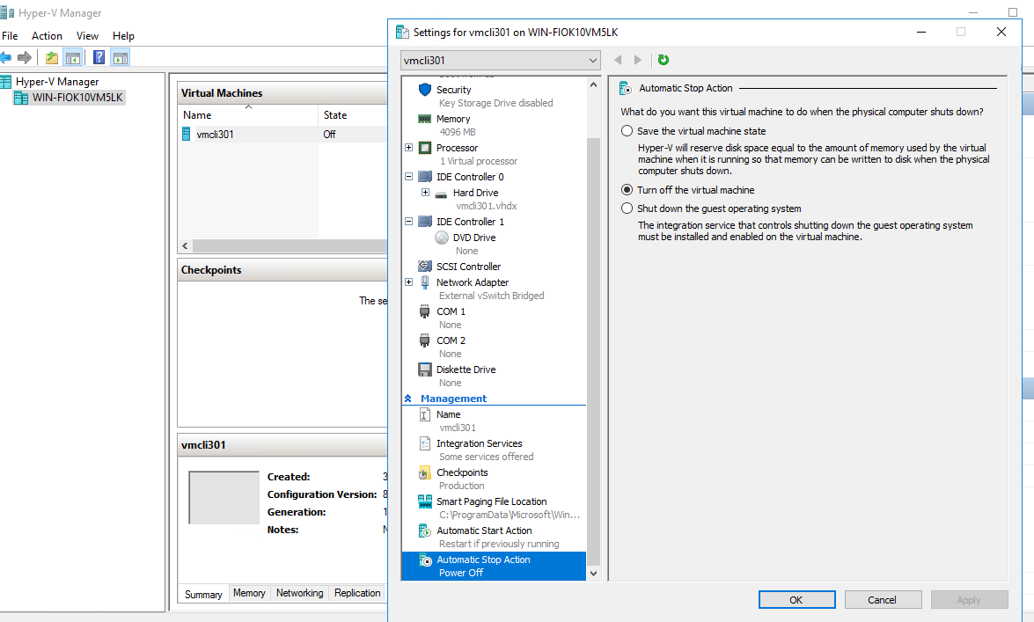
Throughout this section an Ubuntu 20.04 Desktop Version VM called vmcli301 is used.
Additional settings on VM
- In VM Settings set Automatic Stop Action to Turn off the Virtual Machine
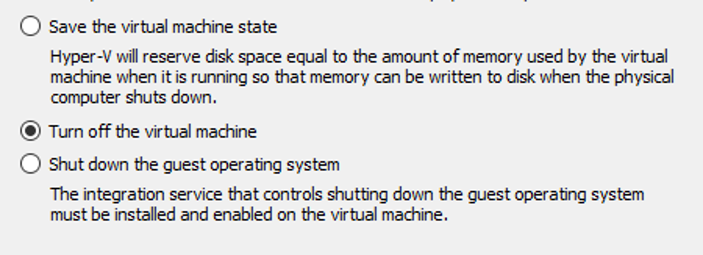
- In VM Settings confirm the VM state is Off

NVMe device Location Path
Each device on the host is assigned a Location Path upon host boot up.
To detect the Location Path for the NVMe device launch the Device Manager.
Select View - > Devices by Connection
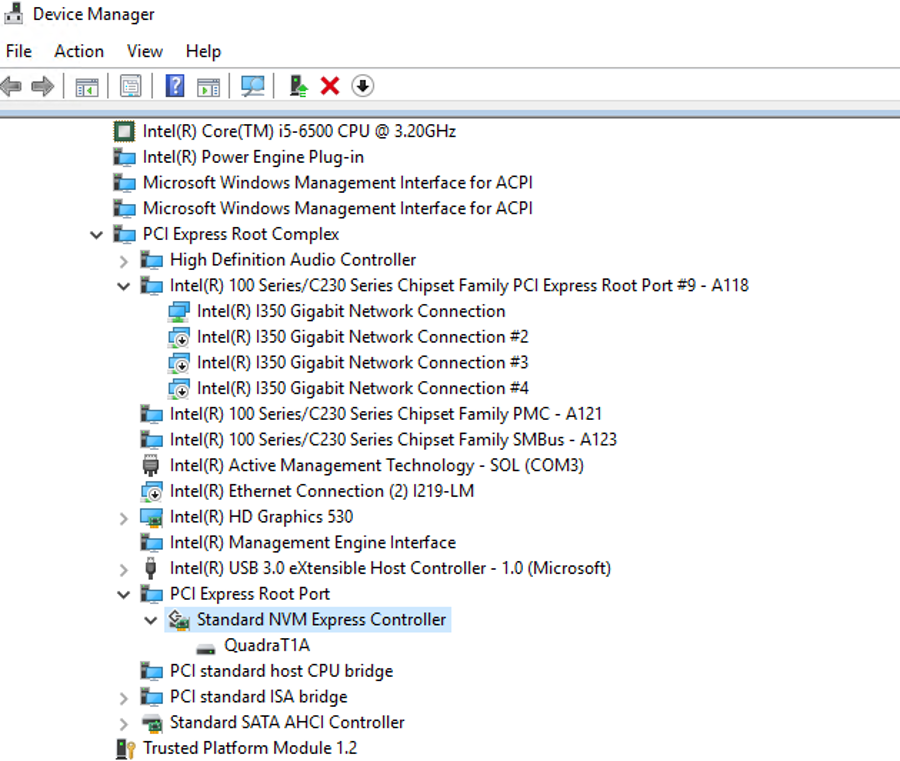
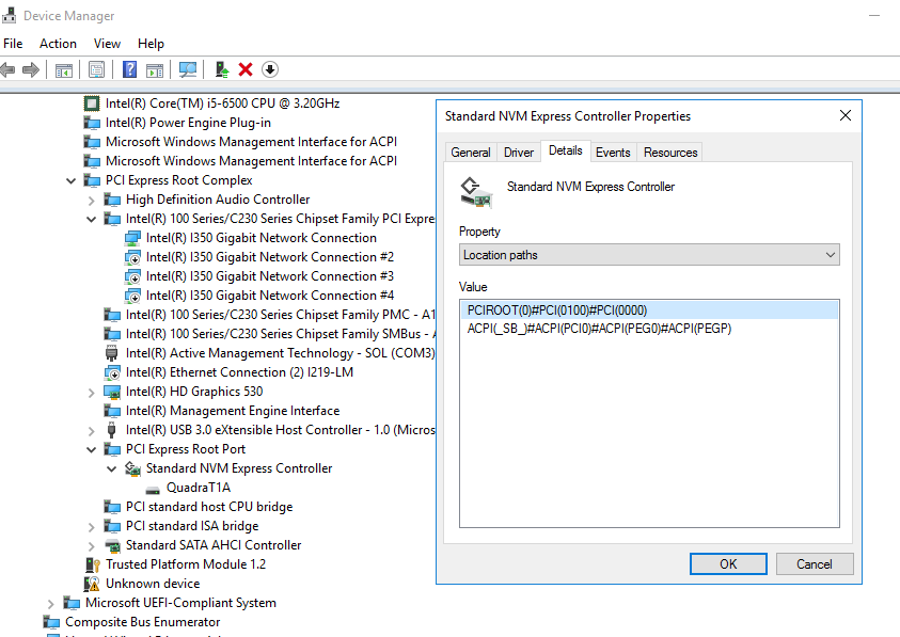
In this case the Location Path for the Standard NVM Express Controller is
PCIROOT(0)#PCI(0100)#PCI(0000).
Disable the NVMe device
Check the Quadra NVMe device is installed on the Host by running the following command:
wmic diskdrive get Name,Model,SerialNumber,FirmwareRevision

In the Windows Device Manager click View Devices by connection and disable the Standard NVM Express Controller. It may be found under PCI Express Root Complex -- > PCI Express Root Port -- > Standard NVM Express Controller.
Right click on Standard NVM Express Controller to see the menu selection and select Disable
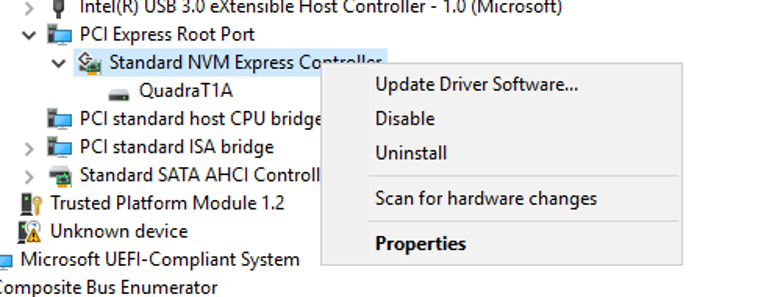

The NVMe device will now not show up in wmic output

Passthrough physical device to VM
Launch Windows Powershell in Administrator mode.
Run the following commands to dismount the NVMe device from the host. Then attach the device to the VM. Ensure to use the Location Path for your NVMe device, as collected in above in Section 9.1.2.
Dismount-VMHostAssignableDevice -LocationPath "PCIROOT(0)#PCI(0100)#PCI(0000)"
Confirm the Windows Device Manager shows the NVMe device is dismounted.

Assign MMIO space
Set-VM -LowMemoryMappedIoSpace 1Gb -VMName vmcli301
Set-VM -HighMemoryMappedIoSpace 2Gb -VMName vmcli301
Attach NVMe device to VM
Add-VMAssignableDevice -LocationPath “PCIROOT(0)#PCI(0100)#PCI(0000)” -VMName vmcli301
Get-VMAssignableDevice
Example:
cmdlet Get-VMAssignableDevice at command pipeline position 1
Supply values for the following parameters:
VMName[0]: vmcli301
VMName[1]:
InstanceID       : PCIP\VEN_1D82&DEV_0401&SUBSYS_04011D82&REV_00\4&1F0B2711&0&0008
LocationPath     : PCIROOT(0)#PCI(0100)#PCI(0000)
ResourcePoolName : Primordial
Name             : Virtual PCI Express Port Settings
Id               : Microsoft:132F09C1-A7E3-44CD-B619-A218F8524B6F\46FF7B1F-9A20-48E9-8679-8D202A8FC245
VMId             : 132f09c1-a7e3-44cd-b619-a218f8524b6f
VMName           : vmcli301
VMSnapshotId     : 00000000-0000-0000-0000-000000000000
VMSnapshotName   :
CimSession       : CimSession: .
ComputerName     : WIN-FIOK10VM5LK
IsDeleted        : False
VMCheckpointId   : 00000000-0000-0000-0000-000000000000
VMCheckpointName :
Start the VM by clicking on Hyper-V Manager - > Virtual Machines - > vmcli301 - > Start
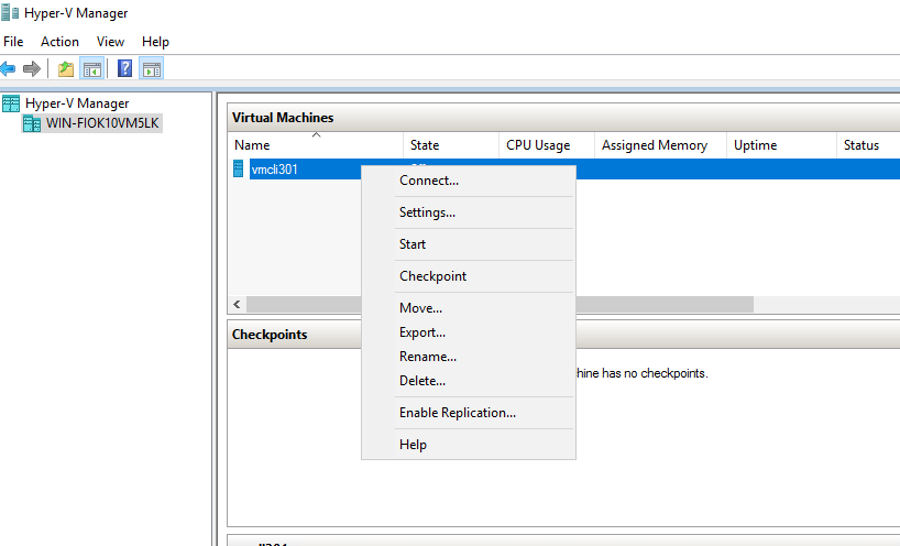
Run the following command to get status of VM
get-VM

Connect to the VM to launch the VM desktop view.
Follow the QuickStartGuideQuadra_V3 or newer, to install the Linux and FFmpeg environment to VM to help see the Quadra device and perform transcoding operations.
Confirm the NVMe device is mounted and accessible to the VM by running the following commands
sudo nvme list
sudo ni_rsrc_mon
sudo lspci -vvv -d 1d82:
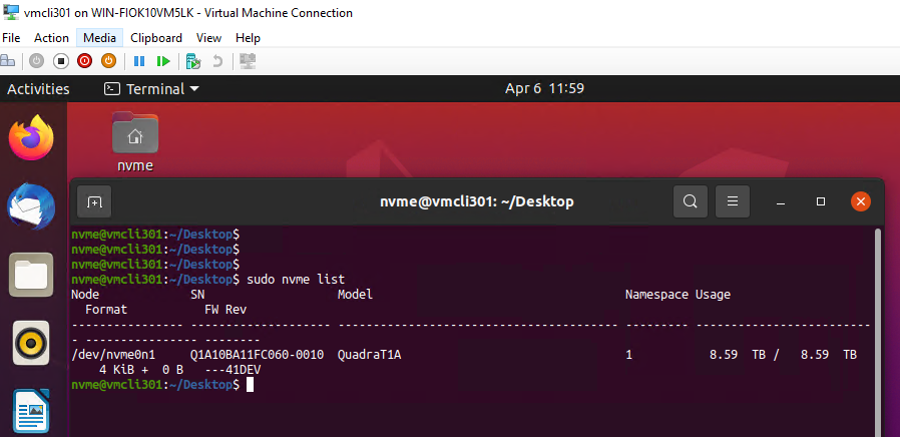
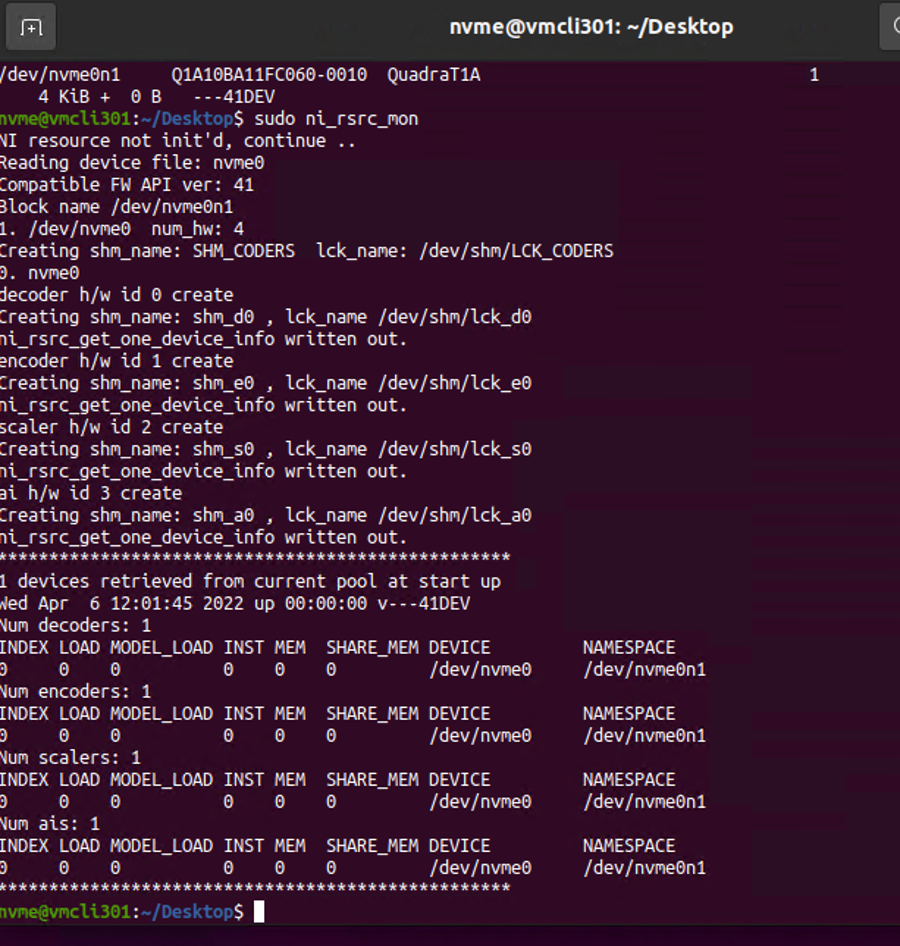
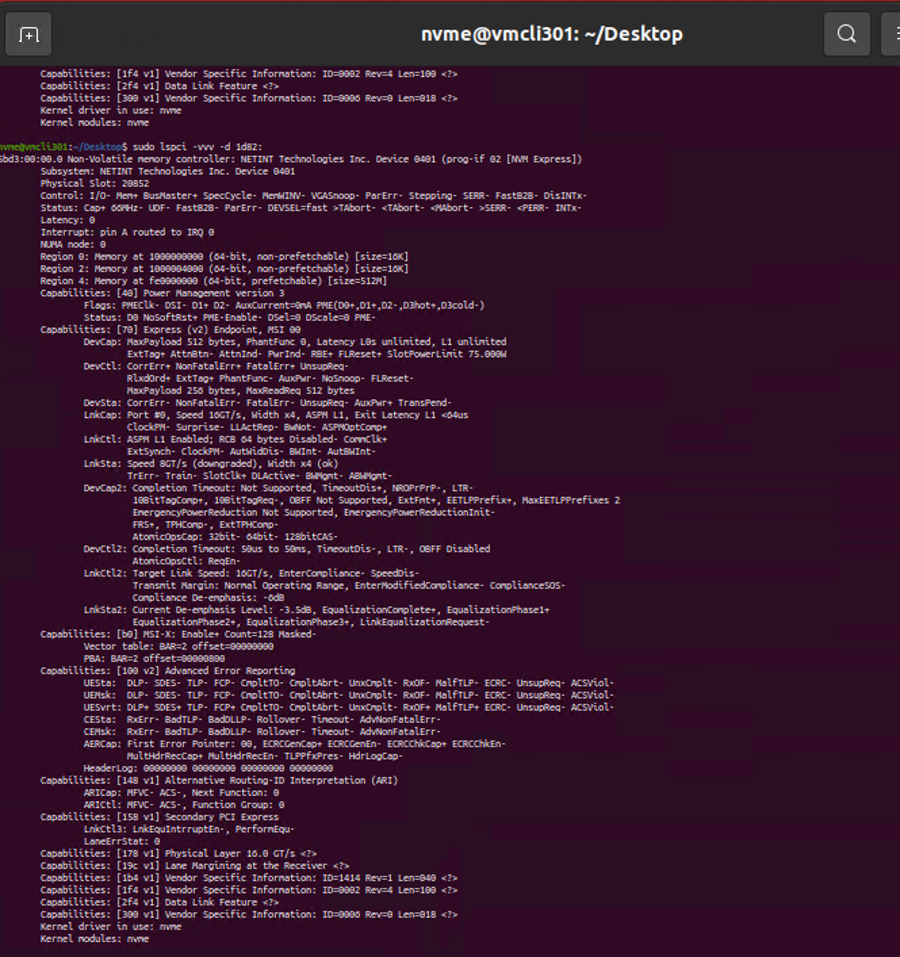
The Quadra NVMe device is now ready for use in the Hyper-V VM.
Passthrough virtual device to VM
This section requires firmware support for SR-IOV on the NETINT video transcoder device, this was introduced since release 4.1.1.
Restoring the NVMe device back to the host
- Launch Windows Powershell in administrator mode. Run the following commands to remove the NVMe device from the Hyper-V VM and mounting it back to the host. Replace Location Path and VM name values in the commands to values specific to your host and VM.
Remove-VMAssignableDevice -LocationPath "PCIROOT(0)#PCI(0100)#PCI(0000)" -VMName vmcli301
Mount-VMHostAssignableDevice -LocationPath "PCIROOT(0)#PCI(0100)#PCI(0000)"
-
In Windows ‘Device Manager’ - > view - > Devices by connection, enable the ‘Standard NVM Express Controller’. It may be found under ‘PCI Express Root Complex à PCI Express Root Port’ - > ‘Standard NVM Express Controller’. Right click on ‘Standard NVM Express Controller’ to see the menu selection and select ‘Enable’.
-
Check the Quadra NVMe device is available on the Host by running the following command.
wmic diskdrive get Name,Model,SerialNumber,FirmwareRevision

Useful links and References
- https://docs.microsoft.com/en-us/virtualization/hyper-v-on-windows/quick-start/quick-create-virtual-machine
- https://ubuntu.com/download/desktop
- https://docs.microsoft.com/en-us/windows-server/virtualization/hyper-v/deploy/deploying-graphics-devices-using-dda#:~:text=Starting with Windows Server 2016,leverage the devices native drivers
- https://docs.microsoft.com/en-us/windows-server/virtualization/hyper-v/deploy/deploying-graphics-devices-using-dda#:~:text=Starting with Windows Server 2016,leverage the devices native drivers
- https://www.techtarget.com/searchvirtualdesktop/tip/Running-GPU-passthrough-for-a-virtual-desktop-with-Hyper-V
- https://www.zdnet.com/article/windows-10-tip-find-out-if-your-pc-can-run-hyper-v/