Android Manual Installation
This applies to both 32 and 64-bit Android Emulators
Install the VFIO on the server
Run the following command to install the vfio
sudo apt-get install virt-manager python-spice-client-gtk
Reboot and go to the BIOS and enable virtualization option (vt-x, vt-d)
After boot up Modify the sudo vim /etc/default/grub
Add below:
GRUB_CMDLINE_LINUX_DEFAULT="intel_iommu=on"
GRUB_CMDLINE_LINUX="intel_iommu=on"
sudo update-grub
Then reboot again.
Check and insmod the VFIO module on your server
Run the commands below:
modprobe vfio
modprobe vfio-pci
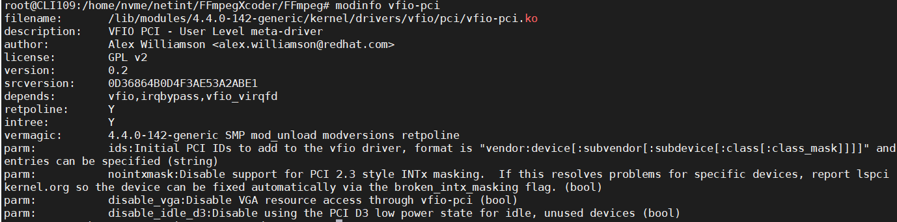
modinfo vfio-pci
If success it will print below info:
VFIO PCI Quadra to KVM
Running lspci to identify your Quadra pci address(Ex: 0000:01:00.0) and sub-number: (1d82 0401) then run below cmd:
echo "0000:01:00.0" > /sys/bus/pci/drivers/nvme/unbind
echo 1d82 0401 > /sys/bus/pci/drivers/vfio-pci/new_id
chown fpga:fpga  /dev/vfio/1
Replace the 0000:01:00.0 with the actual PCI address that found in the lspci, replace fpga:fpga with the current user ID. Change the vfio device number based on the actual number that shows up under /dev/vfio. Different hosts may have different numbers.
Modify /etc/security/limits.conf to add
@fpga    hard    memlock 15928456
@fpga    soft    memlock 15928456
Some hosts require root access to modify limits.conf
Replace @fpga with your user name and replace 15442440 with your system memory size
Reference: https://www.kernel.org/doc/Documentation/vfio.txt
Start Android Emulator using VFIO PCI Quadra card
On the AOSP(android_work or android_work32) folder.
source build/envsetup.sh
lunch aosp_x86_64-eng. For 32bit: lunch aosp_x86-eng
emulator -memory 4096 -partition-size 4096 -writable-system -netdelay none -netspeed full -gpu off -show-kernel -no-window -qemu -enable-kvm -device vfio-pci,host=0000:01:00.0 -kernel goldfish/arch/x86/boot/bzImage
Use your own PCI address, 0000:01:00.0 is just an example. Increase the virtual memory and partition size to 8g, “-memory 8192 -partition-size 8192” if you want to generate clips that are bigger than 1.5GB inside the emulator.
Check the card status when Android Emulator boot up
After the emulator boots up, open another terminal and run:
source build/envsetup.sh
lunch aosp_x86_64-eng .For 32bit lunch aosp_x86-eng
adb shell
ls /dev/
ls /dev/block/
If the command prints the /dev/nvme0 and dev/block/nvme0n1, it means the environment is ready.
Copy nidec with Android source
In the Android AOSP build folder copy the nidec folder to aosp/hardware/interfaces/
You can also get nidec from
https://1drv.ms/u/s!As9sncgYSSJhh3-RxB6qeTzfrkT7?e=DCd176
From inside the AOSP (android_work or android_work32) folder
source build/envsetup.sh
lunch aosp_x86_64-eng  (for 32bit: lunch aosp_x86-eng)
mmm aosp/hardware/interfaces/nidec/1.0
Copy the below generate files to android emulator:
adb root
adb remount
adb push aosp/out/target/product/generic_x86_64/system/lib/vndk-28/android.hardware.nidec\@1.0.so /system/lib/vndk-28/
adb push aosp/out/target/product/generic_x86_64/system/lib64/vndk-28/android.hardware.nidec\@1.0.so /system/lib64/vndk-28/
adb push aosp/out/target/product/generic_x86_64/system/lib64/android.hardware.nidec\@1.0.so /system/lib64/
adb push aosp/out/target/product/generic_x86_64/system/lib/android.hardware.nidec\@1.0.so /system/lib/
adb push aosp/out/target/product/generic_x86_64/system/lib64/android.hardware.nidec\@1.0.so /vendor/lib64/
adb push aosp/out/target/product/generic_x86_64/vendor/lib64/hw/android.hardware.nidec\@1.0-impl.so /vendor/lib64/hw/
adb push aosp/out/target/product/generic_x86_64/vendor/lib64/hw/android.hardware.nidec\@1.0-impl.so /vendor/lib64/
adb push aosp/out/target/product/generic_x86_64/vendor/bin/hw/android.hardware.nidec\@1.0-service /vendor/bin/hw/
adb push aosp/out/target/product/generic_x86_64/vendor/etc/init/android.hardware.nidec\@1.0-service.rc /vendor/etc/init/
Build libxcoder on Android source
On the AOSP(android_work or android_work32) folder.
source build/envsetup.sh
lunch aosp_x86_64-eng  (for 32bit: lunch aosp_x86-eng)
mmm  ../FFmpegXcoder/libxcoder/source
FFmpegXcoder is a reference folder. Folder name will depend on where the software package is extracted (Quadra_SW_v*).
Try below command if the above build command is not working:
cp /home/$USER/FFmpegXcoder/libxcoder ./external/ -r
mmm ./external/libxcoder/source
Copy the below generate files to android emulator
adb root
adb remount
adb push aosp/out/target/product/generic_x86_64/system/lib64/libxcoder.so /system/lib64/
adb push aosp/out/target/product/generic_x86_64/system/lib/libxcoder.so /system/lib/
adb push aosp/out/target/product/generic_x86_64/system/lib/vndk-28/libxcoder.so /system/lib/vndk-28/
adb push aosp/out/target/product/generic_x86_64/system/lib64/vndk-28/libxcoder.so /system/lib64/vndk-28/
adb push aosp/out/target/product/generic_x86_64/vendor/bin/ni_rsrc_mon /system/bin/
This should be the relative path to FFmpegXoder/libxcoder/source
An error will be reported if the path is absolute.
An example of an absolute path /home/fpga/FFmpegXcoder/libxcoder/source
Push security change to environment
You can also get nidec from
https://1drv.ms/u/s!As9sncgYSSJhh3-RxB6qeTzfrkT7?e=DCd176
In the AOSP (android_work or android_work32) folder
adb root
adb remount
adb push mediacodec.policy /system/etc/seccomp_policy/
adb push manifest.xml vendor/
Prepare ffmpeg4.3 environment
Download the following android-ndk-r21d from this location:
https://developer.android.com/ndk/downloads
Note that you can also download it from
https://1drv.ms/u/s!As9sncgYSSJhh3-RxB6qeTzfrkT7?e=DCd176
Now download this android-sdk_r24.4.1-linux from this location:
You can also download it from:
https://1drv.ms/u/s!As9sncgYSSJhh3-RxB6qeTzfrkT7?e=DCd176
Unpack it in your home directory
unzip android-ndk-r21d-linux-x86_64.zip
You should now have the ndk folder
ls -laht |grep ndk
Example
drwxr-xr-x 13 fpga fpga 4.0K Sep 28 19:02 android-ndk-r21d
Build FFmpeg 4.3 from the FFmpegXcoder
Build the libxcoder
cd libxcoder
make clean
bash build.sh
Build the FFmpeg 4.3
cd FFmpeg-n4.3
make clean
bash build_ffmpeg.sh -a --shared
make install
sudo ldconfig
You should now see the build output lib & bin in the following folders
./android/x86_64/lib
./android/x86_64/bin
If the build fails with an unaccepted sdk license in the build.log
-
Record the name of the license
-
Go to
android-sdk-linux/tools -
Run the command
./android list sdk –all
Now check the license ID you previously recorded -
Run this command
./android update sdk –u -a –t ID1,ID2...
or this which may take longer
./android update sdk –u -a
Push all the libs and bin to android
The adb command requires an emulator running in another terminal
Start another terminal, under aosp folder:
source build/envsetup.sh
lunch aosp_x86_64-eng    #for 32bit: lunch aosp_x86-eng
adb root
adb remount
If you do not have the Android source code, you can directly use our build libs and bin for android x86_64 platform.
Push the aosp build output:
 adb push aosp/out/target/product/generic_x86_64/system/bin/ASharedBufferServer   /system/bin/
adb push aosp/out/target/product/generic_x86_64/system/bin/ni_rsrc_mon   /system/bin/
adb push aosp/out/target/product/generic_x86_64/system/lib64/libxcoder.so /system/lib64/
Note for 32bit :
adb push aosp/out/target/product/generic_x86/system/bin/ASharedBufferServer  /system/bin/
adb push aosp/out/target/product/generic_x86/system/bin/ni_rsrc_mon   /system/bin/
adb push aosp/out/target/product/generic_x86/system/lib/libxcoder.so /system/lib/
Push the FFmpeg4.3 bin and lib build outputs
adb push ./FFmpegXcoder/FFmpeg-n4.3/android/x86_64/bin/*   /system/bin/
adb push ./FFmpegXcoder/FFmpeg-n4.3/android/x86_64/lib/*   /system/lib64/
Make a soft link in the Android env for libraries
source build/envsetup.sh
lunch aosp_x86_64-eng    #for 32bit: lunch aosp_x86-eng
adb root
adb remount
adb shell
cd  /system/lib64        #for 32bit: cd  /system/lib
ln -s libxcoder.so libxcoder.so.250R1F10
reboot the android system
250R1F10 is the version number, change according to your release version.
Run the ffmpeg on android platform
Only run this once, after the Android system boot up
adb shell
./vendor/bin/hw/[email protected] & ni_rsrc_mon
Now run the ffmpeg command
ffmpeg -y -hide_banner -nostdin -vsync 0 -c:v h264_ni_quadra_dec -i libxcoder/test/1280x720p_Basketball.264 -c:v rawvideo output_5.yuv