Android Scripted Installation
The Android quick installer script can be used to install the Android emulator environment, then compile Netint libxcoder & FFmpeg using the Android NDK to run them in an Android emulator environment.
Prepare Installation Files
The installation scripts is located in the Android_quick_installer folder at the top level of the Netint release package. Or, it can be found in the tools/Android_quick_installer folder of the Netint SW release package folder (eg. Quadra_SW_V*.*.*_RC*/).
-
Move the contents of the Android_quick_installer folder to where you want Android development folders installed. Note, the development folders can be moved after installation too.
-
Move the
Quadra_SW_V*.*.*_RC*/folder to be with the contents of the Android_quick_installer folder. -
Optionally, move the
Quadra_FW_V*.*.*_RC*/folder to be with the contents of the Android_quick_installer folder if you wish to use thequadra_android_quick_installer.shto upgrade FW. -
Make sure that the virtualization option (
vt-x,vt-d) is enabled in BIOS before building android emulator environment.
Script usage help
Make sure that all files/folders required for installation are in the same directory:
- quadra_android_quick_installer.sh
- adb_push.sh
- build_all_android.sh
- init_android_rsrc_mon.sh
- run_emulator.sh
- patch/
- Quadra_SW_V*.*.*_RC*/
The following command may be used to see help text for the script:
bash quadra_android_quick_installer.sh -h
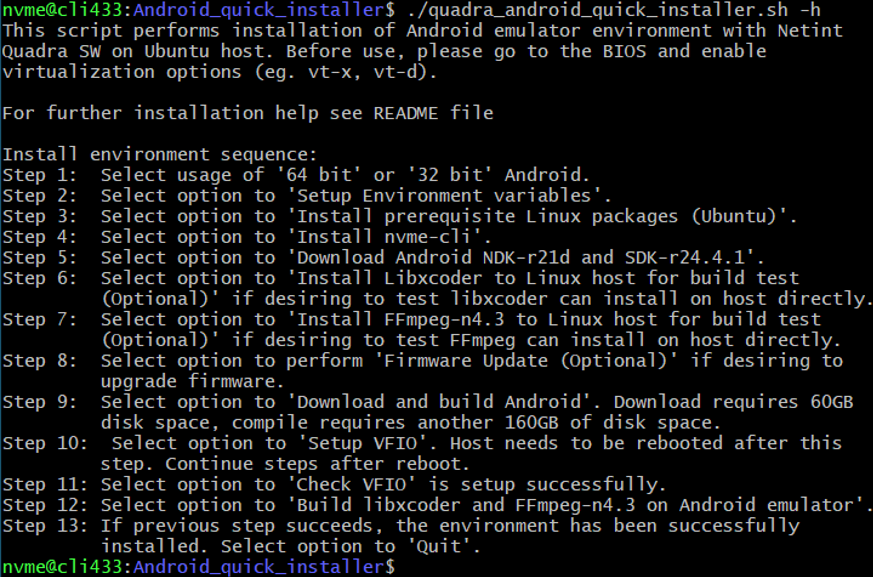
Script execution instructions
Start the script with the following command:
bash android_auto_install.sh
Then, follow the guided process. Refer to the steps in the scripts help text pictured above (bash android_auto_install.sh -h).
The main menu of the script is used to run individual steps of the Android environment installation.
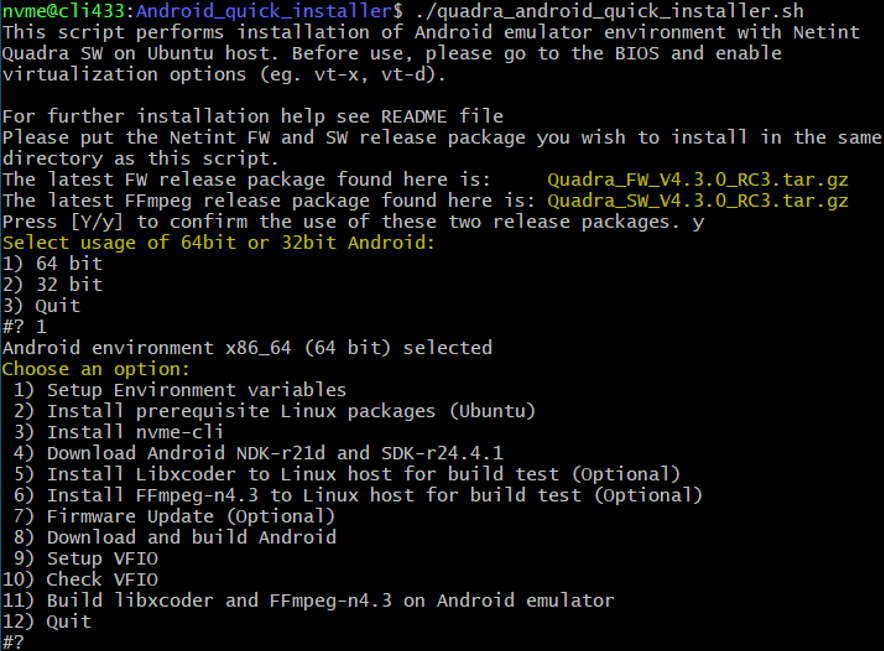
| Option | Description | |
|---|---|---|
| 1 | Setup Environment variables | Set terminal environment variables ($PKG_CONFIG_PATH, $LG_LIBRARY_PATH), sudo $PATH, and ldconfig paths. |
| 2 | Install prerequisite Linux packages (Ubuntu) | Uses apt-get to install pre-requisite software packages for Ubuntu Linux host: nasm, libssl-dev, m4, libncurses5, zip, git, build-essential, make, cmake, gcc, g++, patch, ncurses-dev, valgrind,pkg-config, python2.7, curl |
| 3 | Install NVMe CLI | Install nvme-cli app to aid in NVMe device administration and FW upgrade. Nvme-cli app is not necessary for transcoding. |
| 4 | Download Android NDK-r21d and SDK-r24.4.1 | Download the necessary Android NDK and SDK packages. |
| 5 | Install Libxcoder to Linux host for build test (Optional) | Check prerequisites are installed well on Linux host by building Libxcoder for Linux. |
| 6 | Install FFmpeg-n4.3 to Linux host for build test (Optional) | Check installed prerequisites on the Linux host by building FFmpeg-n4.3 for Linux. |
| 7 | Firmware Update (Optional) | Update FW for Quadra cards on system. NVMe-cli required. |
| 8 | Download and build Android | Download and build AOSP and Android kernel, then attempt to start Android emulator. Note, this step requires about 60GB of downloads and 220GB of free disk space. During this step there will be the option to select either global (Google) or chinese (Tsinghua university) download source. |
| 9 | Setup VFIO | Install virt-manager to configure VFIO. When the VFIO installation is complete, a reboot is required to activate it. If installation is successful, the script will notify user to reboot the host for VFIO activation. Use Option 12: Quit to leave the install script and sudo reboot now to reboot the host. |
| 10 | Check VFIO | Check VFIO successfully activated |
| 11 | Build libxcoder and FFmpeg on Android emulator | This step uses the following scripts so make sure they are in the same directory as the main script: - build_all_android.sh- unzip android-ndk and android-sdk, copy libxcoder+FFmpeg to android_work/ external folder and build them - adb_push.sh- push the files generated by build_all_android.sh to the Android emulator environment - init_android_rsrc_mon.sh- launch the Android emulator environment and verify that the Quadra device is detected - run_emulator.sh- launch the Android emulator environment in the background If and error occurs during build of libxcoder and FFmpeg on Android emulator, please check log, debug issue, restart the host, and perform this step again. |
| 12 | Quit | Exit script. |
At this point, the Android environment is installed. Below are the manual installation steps, if there is a problem with the automatic installation script you can try manual installation.