Using Visual Studio 2026
This section describes the Windows VS2026 environment setup, with steps to compile the libxcoder and FFmpeg using VS2026.
Platform and Configuration
Configuration of VS2026 project
| Debug | Release | DebugDLL | ReleaseDLL |
|---|---|---|---|
| Generate LIB or EXE without optimization | Generate LIB or EXE with optimization | Generate DLL or EXE without optimization | Generate DLL or EXE with optimization |
Supported Platforms and Configuration
| Object: | Configuration | Debug | | Release | | DebugDLL | | ReleaseDLL | | | --- | --- | --- | --- | --- | --- | --- | --- | --- | | Platform | X86 | X64 | X86 | X64 | X86 | X64 | X86 | X64 | | libxcoder | | ✓ | ✓ | ✓ | ✓ | ✓ | ✓ | ✓ | ✓ | | Ffmpeg | | | | | ✓ | | | | ✓ |
Setup VS2026 environment
Online Setup VS2026
- Download VS2026 from
https://visualstudio.microsoft.com/
-
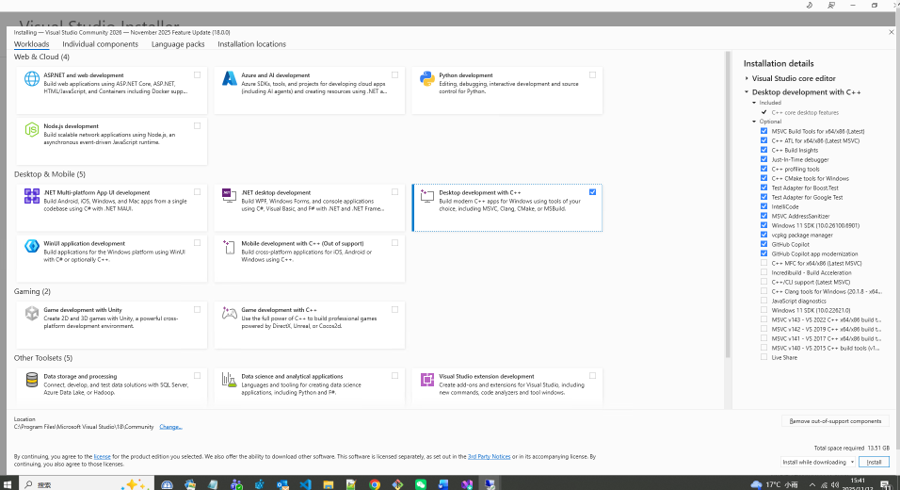
Install VS2026, selecting the option Desktop development with C++
-
Install the plug-in Microsoft Visual Studio Installer Projects from the Visual Studio Marketplace
Compiling Libxcoder and FFmpeg for Quadra/Logan
Preparation
These two separate solutions can be compiled together using a batch script that calls devenv.exe rather than using the VS IDE. However if preferred, the IDE can be used instead by loading and building the VS solution file (.sln). Manually copy the intermediate and output files the same way the batch script does.
The compilation of FFmpeg v4.3.1 is shown as an example below.
- From the release package folder
Quadra_SW_v3.0.0
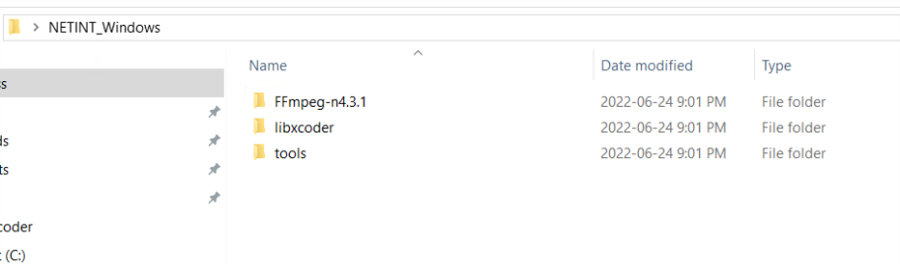
Copy the following two folders into a new folder, in this example the folder named NETINT_Windows is used
- libxcoder
- tools
- Clone
FF3.mpeg-n4.1from git
git clone -b n4.3.1 --depth=1 https://github.com/FFmpeg/FFmpeg.git FFmpeg-n4.3.1
- From the following folder
Quadra_SW_V3.1.1_EN3
copy the patch file below
FFmpeg-n4.3.1_netint_v3.1.1_EN3.diff
to the FFmpeg-n4.3.1 folder created in Step 2 by the git clone command
- Change directory to
FFmpeg-n4.3.1
- Apply the patch with the following command
patch -p 1 -t -i FFmpeg-n4.3.1_netint_v3.1.1_EN3.diff
Build Libxcoder and FFmpeg for Quadra or ReleaseDLL
This process is simple with only three steps required
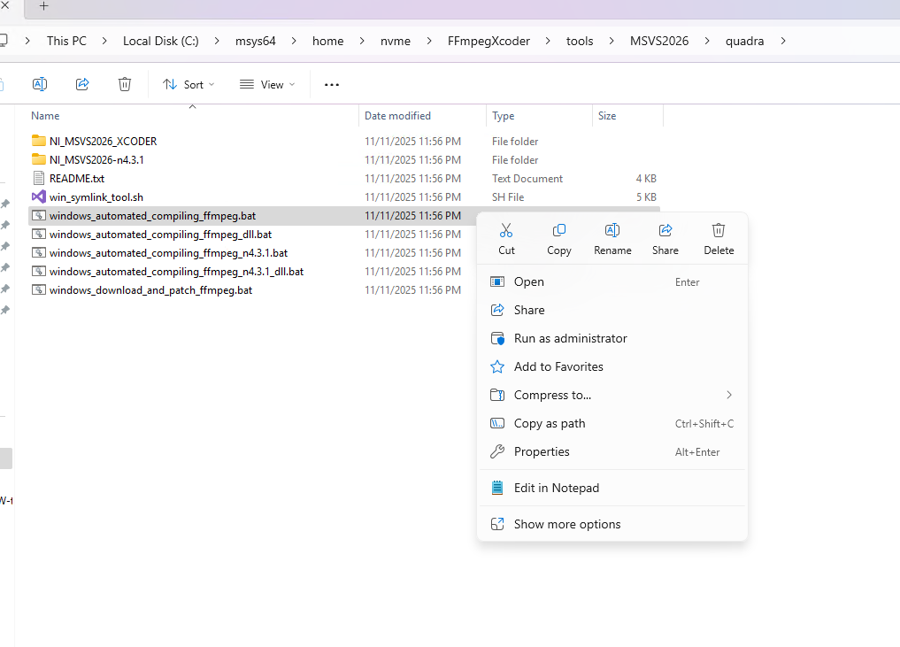
- Change directory into
tools\MSVS2026\quadra - Run the batch file as an admin to build the libxcoder and FFmpeg Release, or ReleaseDLL
windows_automated_compiling_ffmpeg_n4.3.1.bat- > Release build
windows_automated_compiling_ffmpeg_n4.3.1_dll.bat- > ReleaseDLL build - Ensure the following extension is installed before running the batch files
VS2026 --> Extensions --> Manage Extensions --> Microsoft Visual Studio Installer Projects
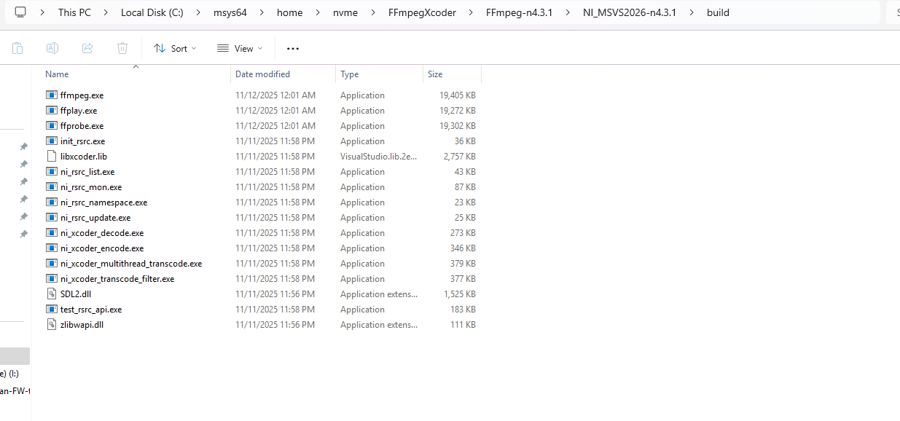
- If the user runs the Release batch files, the output build executable and setup files can be found in the build directory.
Install and Run FFmpeg
The installation of FFmpeg will NOT modify any environment variable or registry item of a Windows 10 system but does require administrator access.
Using FFmpeg-n4.3.1 as an example, assume the build directory is located at
C:\FFmpeg-n4.3.1\NI_MSVS2026-n4.3.1\build
and all the output files are located in there.
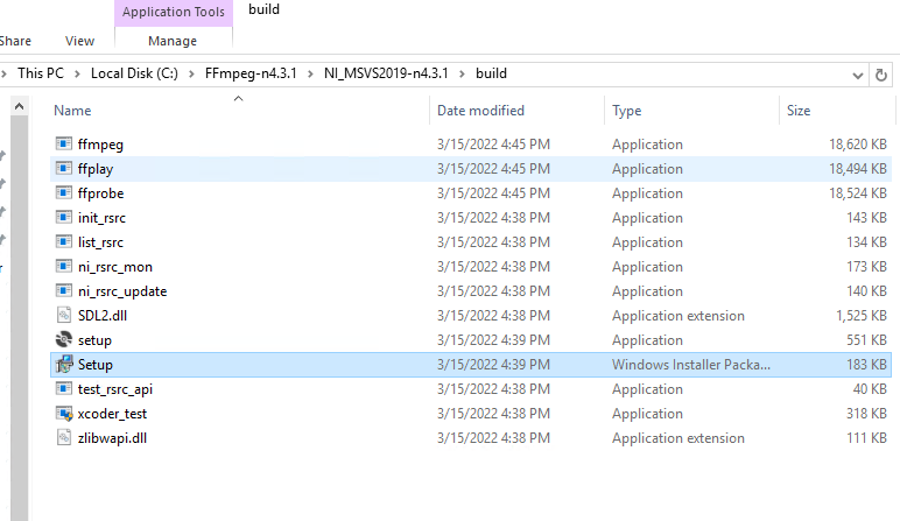
- Click the
setup.msigenerated in the build directory
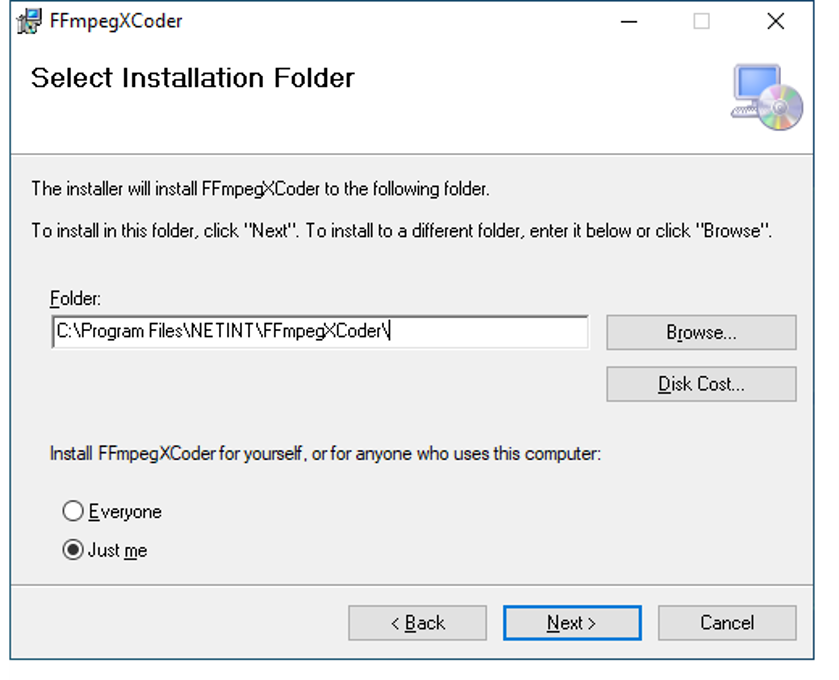
- Choose your own installation path as administrator, for example
C:\Program Files\NETINT
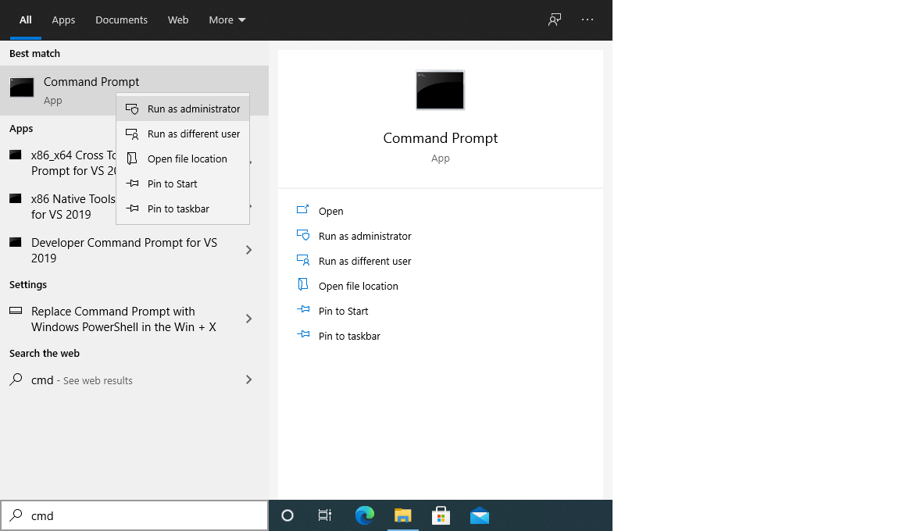
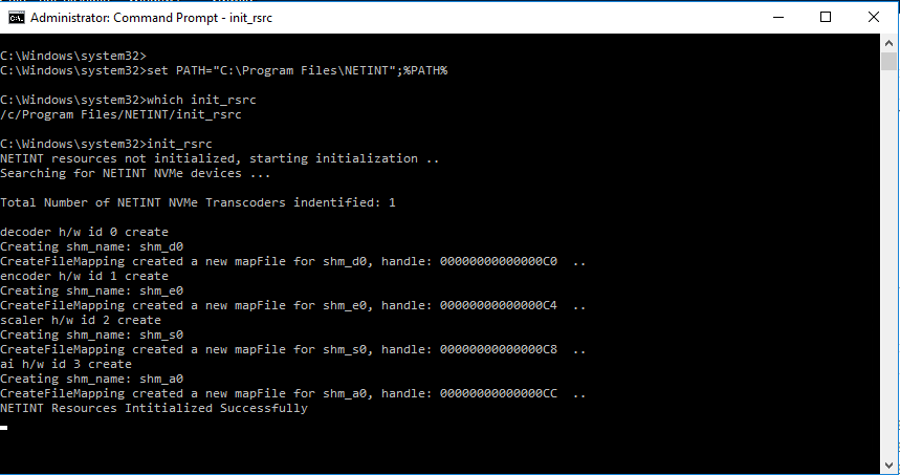
- Run a command prompt as Administrator
- Add installation path into
%PATH%variable and runinit_rsrccommand
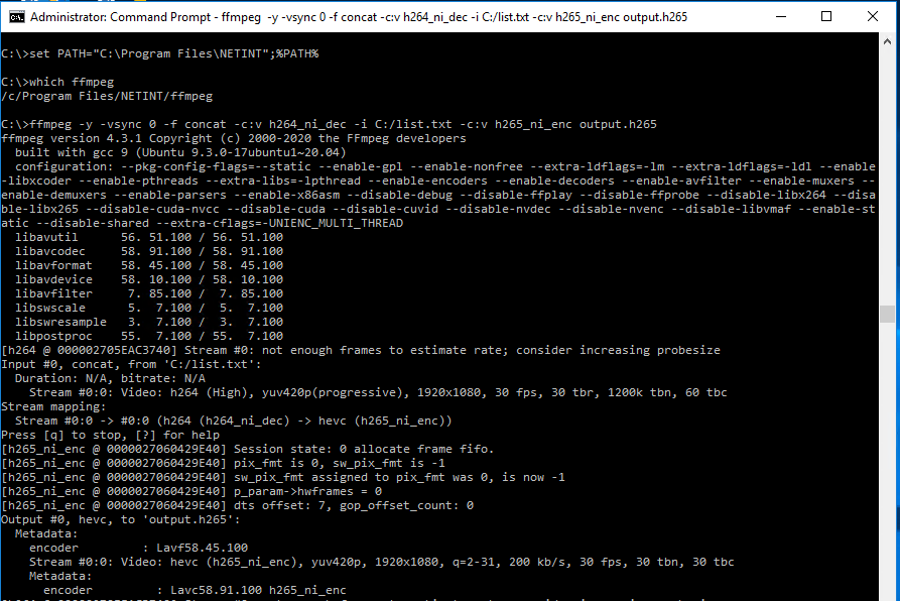
- Start another command prompt and run your own ffmpeg command